I’ve spent the better part of a decade setting up, troubleshooting, and recommending Apple hardware for everyone from first-time iPhone buyers to small IT departments managing forty-device fleets. The question I get asked most often isn’t “which iPhone should I buy.” It’s “what actually counts as an iOS device, and why does it matter?” That distinction trips up more people than you’d expect, and getting it right changes how you shop, how you troubleshoot, and how you plan for the accessories and software that will actually work with what you own.
This guide walks through every device family that runs Apple’s mobile operating systems, how they connect to one another, what to consider before buying, and how to keep them running well past their warranty date.
What Exactly Counts as an iOS Device
An iOS device is any piece of Apple hardware that runs iOS or one of its close relatives: iPadOS, watchOS, tvOS, or audioOS. All of these operating systems share a common ancestor: the original iPhone OS that launched in 2007. Apple split the codebase over the following decade so that each device type could get an interface suited to its screen size and use case, but the underlying architecture, security model, and app ecosystem still trace back to the same source.
That means, strictly speaking, “iOS device” is sometimes used loosely to describe the whole family (iPhone, iPad, Apple Watch, Apple TV, HomePod, and the now-discontinued iPod touch), even though only the iPhone and iPod touch run iOS itself. iOS was originally released in 2007 for the iPhone and iPod Touch and has since been extended to support other Apple devices such as the iPad and Apple TV. If you’re shopping for accessories, developing an app, or troubleshooting a sync issue, that distinction matters, because a case that fits an iPhone won’t fit an iPad, and an app built for iOS needs adaptation before it runs properly on watchOS.
Quick answer: An iOS device is any Apple product running iOS or a related operating system built on the same foundation. iPhone and iPod touch run iOS directly, while iPad runs iPadOS, Apple Watch runs watchOS, Apple TV runs tvOS, and HomePod runs audioOS. All of them share Apple’s app ecosystem, security architecture, and continuity features.
Apple maintains an official reference for anyone who wants the exhaustive version of this: the iPhone User Guide covers every current model and the software behind it, and it’s worth bookmarking before you buy anything Apple sells.
The Full Lineup: Every Apple Device Family Explained
iPhone
The iPhone is the device most people mean when they say “iOS device,” and it’s still the product line that defines the platform. Every iPhone runs iOS, gets roughly five to seven years of major software updates depending on the chip inside it, and shares the same App Store, iMessage, and iCloud backbone across generations.
What a lot of buyers don’t realize is how much the manufacturing cost gap between generations shrinks the closer you get to the current model. I’ve watched clients assume last year’s iPhone must be dramatically cheaper to build than the newest one, it usually isn’t, because the camera modules, the display stack, and the titanium or aluminum frame all cost real money regardless of release year. If you want the actual teardown numbers instead of guesswork, our breakdown of what it costs Apple to build an iPhone 14 versus an iPhone 13 shows exactly where that extra spend goes.
iPad
iPad runs iPadOS, a fork of iOS tuned for the larger screen, Apple Pencil input, and multitasking windows that don’t make sense on a phone-sized display. It’s the device category with the widest price spread, an entry-level iPad and an iPad Pro can differ by well over a thousand dollars, and the widest range of use cases, from note-taking students to video editors running professional timelines on an 11-inch screen.
iPads also tend to stay in service longer than phones, partly because they’re used more gently (fewer pocket drops, fewer cracked screens from concrete sidewalks) and partly because a slower iPad is still perfectly usable for reading and browsing long after it’s stopped being fast enough for the newest games. That longevity is exactly why repair, rather than replacement, is often the smarter call when something does go wrong. If your iPad has a cracked screen, a swollen battery, or a charging port that’s stopped cooperating, it’s worth reading through the case for using a professional iPad repair service before you write the device off entirely.
Apple Watch
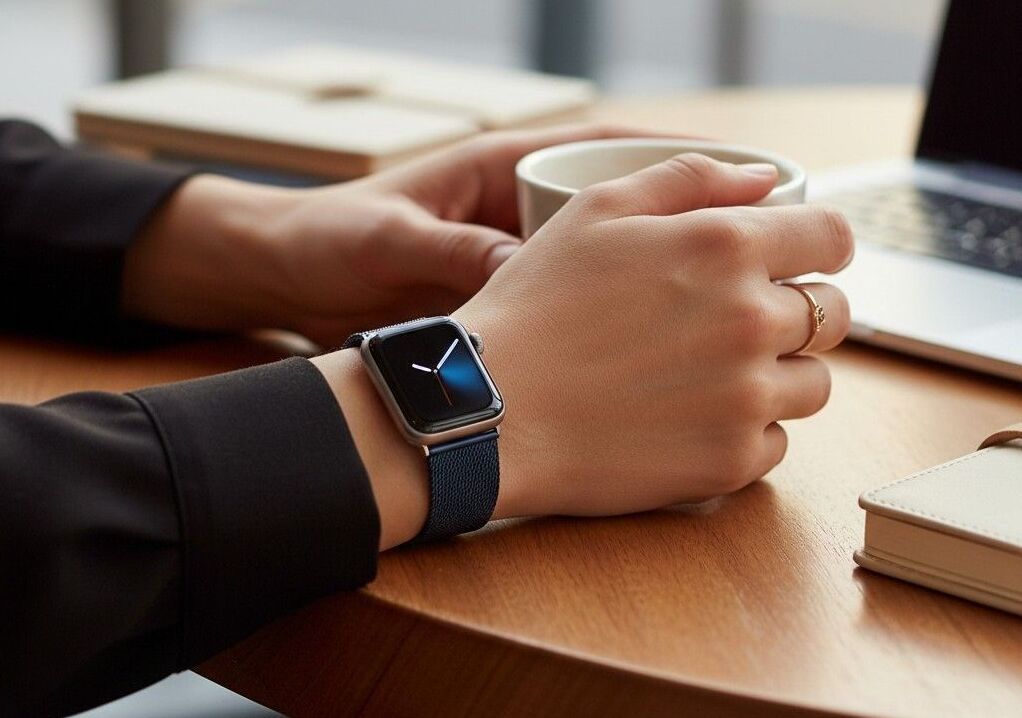
Apple Watch runs watchOS and functions as a companion device, it needs an iPhone nearby (or previously paired) to fully set up, though newer cellular models can operate independently for calls, texts, and streaming once configured. It’s become the default fitness and notification hub for a huge share of iPhone owners, and the accessory market around it has grown just as fast as the watch itself.
Bands, in particular, are where people express the most personality with this device, and the quality gap between cheap third-party straps and better-made alternatives is bigger than most first-time buyers expect. A well-built band changes how the watch sits on your wrist and how long it survives daily wear. Our roundup of Posh Tech Apple Watch bands is a good starting point if you’re tired of the stock silicone strap.
Beyond bands, Apple Watch has quietly become a genuine health device rather than a notification accessory. ECG readings, blood oxygen measurement, sleep staging, and irregular rhythm notifications have all moved from novelty features to tools that cardiologists and primary care doctors now regularly reference when patients bring in exported data. Fall detection and Crash Detection, which automatically contact emergency services when the watch senses a hard fall or a car collision and the wearer doesn’t respond, have documented real-world cases of getting help to people who couldn’t call for it themselves. None of this requires a subscription or a paired iPhone actively nearby once the initial setup is complete on cellular models, the watch keeps monitoring on its own.
Apple TV
Apple TV runs tvOS, a living-room-focused operating system built around a remote and a ten-foot interface rather than touch input. It’s less of a headline product than iPhone or iPad, but it’s a fully-fledged iOS-family device, it uses the same App Store infrastructure, the same developer tools, and increasingly the same on-device intelligence features Apple ships across the rest of the lineup.
Two roles it plays that go beyond streaming video are worth calling out. First, it’s a genuine gaming platform for anyone willing to pair a controller, not a AAA console competitor, but a capable home for casual and mid-weight titles through Apple Arcade. Second, it functions as a Thread and Matter smart-home hub, meaning it quietly coordinates HomeKit accessories like locks, thermostats, and sensors even when nobody’s watching television, which is a role most owners don’t realize the box is performing in the background.
HomePod
HomePod and HomePod mini run audioOS, a stripped-down operating system focused on Siri, music playback, and smart-home control. It’s the smallest member of the family in terms of what it does, but it still shares the security model and account architecture that ties every other Apple device together.
Two HomePods placed in the same room automatically form a stereo pair, and multiple HomePods across different rooms can be grouped for whole-home audio without any third-party hardware. As a smart-home hub, HomePod also handles the same Thread and Matter coordination duties as Apple TV, so a household with both isn’t running redundant hardware, they’re providing overlapping coverage in case one device is powered off or out of range.
iPod touch (Legacy)
Apple discontinued the iPod touch in 2022, but it’s still worth mentioning because it’s technically the purest “iOS device” in the historical sense, a pocket computer running iOS with no cellular radio at all. Apple’s iOS devices have historically included the iPad, iPod Touch, and iPhone, and plenty of older iPod touch units are still in daily use in schools and among younger kids who don’t yet have a phone plan.
How iOS Devices Talk to Each Other: The Continuity Layer
The single biggest reason people end up owning three or four Apple devices instead of one is Continuity: the set of features that let your iPhone, iPad, Mac, and Apple Watch behave like one connected system instead of separate gadgets.
- Handoff lets you start an email on your iPhone and finish typing it on your iPad or Mac without doing anything except walking over and tapping the icon that appears on the dock.
- AirDrop transfers files, photos, and links between nearby Apple devices over a direct peer-to-peer connection, without needing a shared Wi-Fi network or a cellular signal.
- Universal Clipboard copies text, images, or files on one device and lets you paste them on another within a short window.
- Unlock with Apple Watch authenticates your Mac automatically when your watch is nearby and unlocked, which sounds minor until you’ve typed a sixteen-character password fifty times in a week.
- Sidecar turns an iPad into a second display or drawing tablet for a Mac, wired or wireless.
None of this is required to use any single device (an iPhone works fine on its own), but the value compounds fast once you own more than one. This is also the practical reason Apple’s ecosystem retains customers so effectively: replacing one Apple device with a competitor’s product means giving up features that only work because everything else in the house is also Apple.
Family Sharing and Multi-Device Households
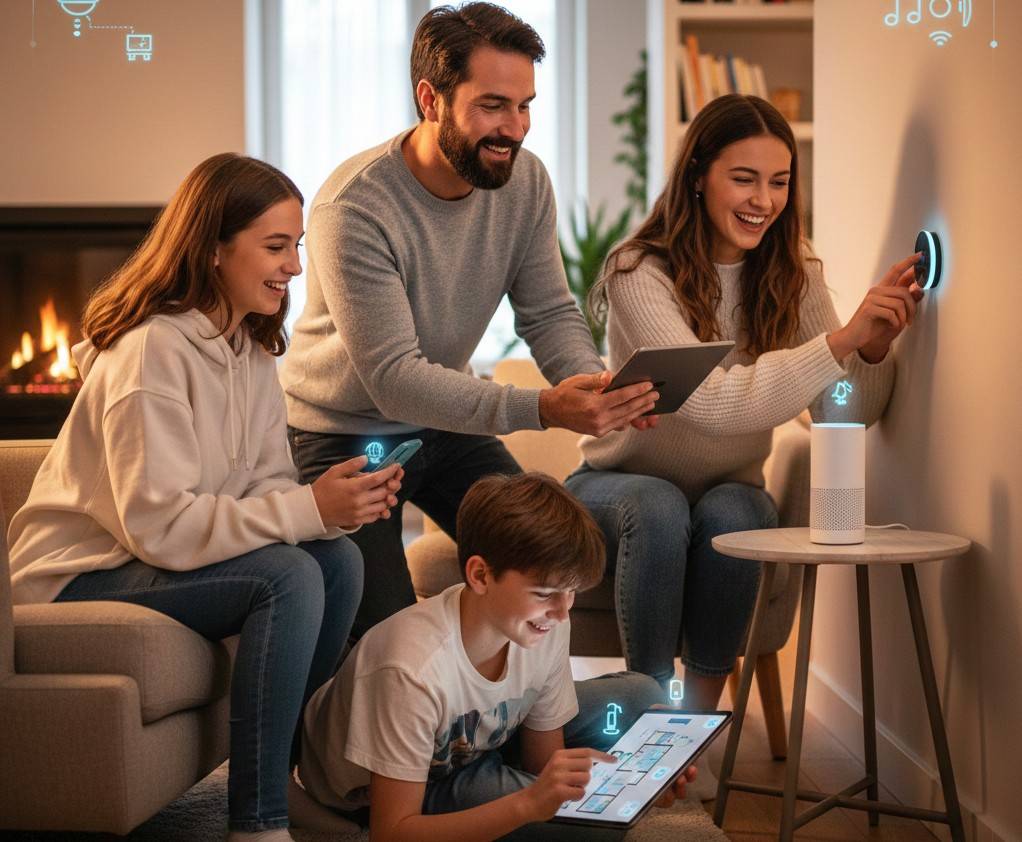
Most households don’t own a single iOS device, they own a cluster of them, often across two or three generations of family members, and Apple builds specific tooling around exactly that situation rather than treating every device as an isolated purchase.
Family Sharing lets up to six people share App Store purchases, subscriptions, an iCloud storage plan, and a family calendar without duplicating payments across accounts. Parents managing a child’s first iPhone or iPad get Screen Time controls that limit app categories, set downtime windows, and require approval for new app downloads or purchases, all enforced at the operating-system level rather than through a third-party app that a determined teenager can simply delete. Location sharing through Find My lets family members see each other’s device locations (with consent, and revocable at any time), which is less about surveillance and more about the mundane logistics of knowing whether a kid’s bus has arrived or whether an elderly parent made it home from a doctor’s appointment.
The practical upshot for anyone setting up a household’s worth of devices: configure Family Sharing before individual devices, not after. Retrofitting it once everyone has separate Apple Accounts and separate purchase histories is possible but meaningfully more tedious than starting with it from day one.
iOS Devices in Business and Education
Enterprise and school deployments of iOS devices work fundamentally differently from a single consumer setting up their own phone, and treating a hundred-device rollout like a hundred individual purchases is the single most common mistake I see IT teams make.
Apple Business Manager and Apple School Manager let organizations purchase devices in bulk and enroll them automatically into a Mobile Device Management system before they’re ever unboxed, an employee or student powers on a brand-new iPad and it configures itself according to organizational policy without anyone manually touching Settings. Supervised mode, available only through this managed enrollment path, unlocks restrictions unavailable on personally owned devices: disabling the camera, locking a device to a single app for testing or kiosk use, blocking account changes, and remotely wiping lost or stolen hardware without needing physical access to it.
For schools specifically, Shared iPad lets a single device serve multiple students across different class periods, with each student’s documents, app data, and progress kept separate and restored automatically when they sign back in, a meaningfully different model from a personal device meant for one owner. Getting this right at the procurement stage saves enormous administrative overhead later; getting it wrong means an IT department manually configuring devices one at a time indefinitely.
Security and Privacy Architecture
Every current iOS device ships with a dedicated Secure Enclave, a separate processor that handles encryption keys, biometric data, and payment credentials in isolation from the main operating system. Face ID and Touch ID data never leaves this enclave and is never uploaded to Apple’s servers, which is a meaningfully different architecture from how some competing platforms handle biometric authentication.
App Tracking Transparency, introduced in 2021, requires apps to ask explicit permission before tracking user activity across other companies’ apps and websites. It reshaped the mobile advertising industry almost overnight and remains one of the clearest examples of a platform-level privacy decision with real financial consequences for the companies that depend on tracking data.
For most buyers, the practical takeaway is simpler than the engineering behind it: iOS devices default to privacy-protective settings, and the burden falls on apps to ask for more access rather than on users to lock things down manually. That’s a meaningfully different posture than “install it and configure everything yourself,” and it’s one of the reasons less technical family members tend to have fewer security incidents on iOS devices than on more open platforms.
Passkeys are the newest piece of this architecture, replacing traditional passwords with cryptographic key pairs stored in the Secure Enclave and synced across a user’s devices through iCloud Keychain. A passkey can’t be phished the way a typed password can, because there’s no shared secret being transmitted that a fake login page could intercept, the private half of the key never leaves the device. iCloud Keychain also generates and stores strong, unique passwords for every site and app automatically, and flags reused or previously breached credentials without requiring a third-party password manager, though plenty of security-conscious users still layer one on top for cross-platform reasons.
Find My deserves a specific mention because its network effect is easy to underestimate. Every iOS device with Find My enabled (hundreds of millions of them worldwide) can anonymously help locate a lost device or an AirTag by relaying a Bluetooth signal back to its owner, entirely encrypted and without Apple or any bystander’s device ever learning what’s being tracked or by whom. That crowdsourced network is a meaningfully different security proposition than a single GPS chip trying to phone home on its own.
Choosing the Right iOS Device for You
By Use Case
Creators and photographers get the most value from the Pro-tier iPhones and iPads, where the camera hardware, storage headroom, and processing power for editing apps are genuinely differentiated from the standard models, not just marketing.
Business and enterprise users should weight device management features heavily. Apple’s Mobile Device Management framework lets IT teams push configurations, enforce passcodes, and remotely wipe lost hardware, and it works consistently across iPhone, iPad, and Mac.
Students are usually better served by a mid-range iPad with Apple Pencil support than by the most expensive model on the shelf, note-taking, PDF annotation, and web research don’t need Pro-level processing power.
Older adults and accessibility-first buyers benefit disproportionately from the standard iPhone models, which include the exact same accessibility stack as the flagship phones at a lower price point.
New vs. Refurbished vs. Previous Generation
A refurbished iOS device from Apple’s own certified program carries the same one-year warranty as new hardware and typically costs 10-15% less. Buying one generation behind the current flagship is usually the better value trade for anyone who isn’t chasing the newest camera sensor or chip. Software support timelines are long enough that a two-year-old iPhone will keep receiving major updates for years to come.
Storage Tiers, Explained Honestly
Storage is where most buyers overspend without realizing it. The base storage tier on any current iPhone or iPad is genuinely sufficient for the average user once iCloud Photos and iCloud Drive are configured to offload originals to the cloud rather than keeping every file locally. The people who legitimately need the largest tier are a narrower group than the marketing implies: videographers shooting and editing 4K or ProRes footage directly on-device, musicians working with large sample libraries in GarageBand or Logic Pro for iPad, and anyone who deliberately keeps their entire photo library downloaded for offline access on long trips without reliable internet. Everyone else is usually better served putting the price difference between storage tiers toward a better camera system, a cellular plan for their Apple Watch, or simply a lower total cost.
Carrier-Locked vs. Unlocked
Carrier-locked iPhones, sold directly through a mobile carrier and often subsidized through an installment plan, are typically the cheapest way to get a new device upfront but come with restrictions on switching carriers until the device is paid off and formally unlocked. Unlocked models cost more at the point of purchase but offer immediate freedom to move between carriers, which matters more for frequent international travelers or anyone who values not being tied to a specific provider’s coverage map and pricing changes.
Trade-In, Recycling, and the Environmental Case
The greenest iOS device is usually the one you already own, and Apple’s own trade-in and recycling infrastructure reflects that reality more directly than most manufacturers’ equivalent programs. Apple’s trade-in program credits a working device toward a new purchase or, for devices with no resale value, recycles it at no cost through Apple’s own material-recovery process, which reclaims rare-earth elements, cobalt, and other materials that would otherwise end up as landfill waste.
Battery health tracking, built directly into Settings, tells you exactly when a battery has degraded past a useful capacity threshold rather than leaving you to guess from vague symptoms like faster drain or unexpected shutdowns, and replacing a battery is dramatically cheaper, and better for the environment, than replacing an entire device that’s otherwise functioning fine. For anyone weighing a new purchase against extending a current device’s life, checking battery health first is a five-second step that often changes the entire decision.
Accessibility: Built In, Not Bolted On
This is the part of the iOS device story that gets the least attention relative to how much it matters. Every iPhone and iPad ships with a full accessibility suite covering vision, hearing, mobility, speech, and cognitive needs, built into the operating system rather than sold as a separate add-on.
VoiceOver reads the screen aloud and lets users navigate entirely by gesture, without ever needing to see the display. Voice Control allows full device operation using only spoken commands, useful for anyone with limited hand mobility. Sound Recognition can alert a deaf or hard-of-hearing user when it detects a doorbell, smoke alarm, or crying baby. Assistive Access simplifies the entire interface, Phone, Messages, Camera, Photos, and Music collapse into a single, larger-icon layout for users with cognitive disabilities. Apple documents the full breadth of this system on its accessibility support page, and it’s genuinely worth a look even if you don’t think you need any of it right now, because a family member eventually will.
What I tell every client who asks: don’t buy accessibility hardware as an afterthought. Configure VoiceOver or Voice Control once during setup, even briefly, so you know how to turn it on quickly if a parent, a colleague recovering from surgery, or your own eyesight changes later.
Keeping iOS Devices Running: Software Updates, Storage, and Repair
Software updates are the single biggest lever you control after purchase. Apple typically supports iPhones for five to seven years of major iOS releases, and skipping updates isn’t the storage-saving shortcut people assume it is, security patches ship inside those same updates, and an unpatched device is a genuinely worse security posture than a slightly slower one.
Storage management is the second lever. iCloud Photos, offloading unused apps automatically, and clearing out message attachments recover meaningful space without deleting anything you’d miss. If a device is chronically full despite that, it’s usually cheaper to add iCloud storage than to buy a new phone purely for capacity reasons.
Repair is the third, and it’s the one people underuse the most. A cracked screen, a degraded battery, or a failed charging port doesn’t mean the device is done, it means one component needs replacing. Professional repair, done correctly, restores full functionality for a fraction of a replacement’s cost, and for iPads specifically, where the repair market is less saturated than the iPhone repair market, choosing an experienced repair service over a DIY kit or a big-box counter can be the difference between a device that lasts another three years and one that dies from a botched screen replacement.
Design, Manufacturing, and What Devices Actually Cost to Build
It’s worth understanding, at least at a high level, why iOS devices carry the prices they do. Component costs, the display, the camera modules, the processor, the frame material, make up a large share of the retail price, but they’re not the whole story; software development, testing, retail infrastructure, and long-term update support all get baked into that number too.
The generation-over-generation cost jump is often smaller than marketing suggests and sometimes larger than buyers assume. A deeper look at how iPhone 14’s build cost compared to the iPhone 13’s shows how a single component change (in that case, camera and connectivity upgrades) can move the manufacturing cost noticeably even when the outward design looks nearly identical.
Building for iOS: A Quick Look at App Design and UX
If you’re a developer or product designer rather than a buyer, iOS devices come with their own design language, and ignoring it is the fastest way to ship an app that feels foreign to the platform. Apple’s Human Interface Guidelines dictate touch target sizes, navigation patterns, and typography choices that iOS users have been trained on for over a decade, deviate too far and the app feels like a port from another platform rather than something built for the device it’s running on.
Screen size fragmentation matters more on iOS than people expect, too, an app tuned only for the newest iPhone Pro Max will look cramped or oddly spaced on a smaller SE-class device, and one tuned only for a phone will feel wasteful of space on an iPad. Our practical rundown on designing app UI and UX specifically for iOS walks through the layout and interaction patterns that actually hold up across that range of screens.
Capturing Life: Cameras and the “Shot on Iphone” Standard
Camera quality is the feature most buyers rank first when choosing between iOS devices, and Apple has spent a decade building a marketing identity around it. The company’s long-running “Shot on iPhone” campaign is built on real, unedited (or lightly edited) photos taken by ordinary users on standard hardware, a deliberate choice meant to prove the camera performs without professional lighting or equipment behind it.
What that campaign actually implies about computational photography, sensor size, and what “shot on iPhone” really means in marketing terms versus technical terms is worth understanding before you buy a phone based on camera specs alone, our breakdown of what Apple really means when it says “Shot on iPhone” separates the marketing claim from the underlying hardware and software doing the actual work.
Apple Watch Bands, Accessories, and Personalizing Your Devices
Accessories are where the iOS device experience stops being purely functional and starts being personal. Cases, bands, screen protectors, and MagSafe attachments are a multi-billion-dollar market of their own, and the quality spread within that market is enormous, a five-dollar case and a fifty-dollar case can produce wildly different levels of actual protection, not just different aesthetics.
Apple Watch bands specifically see the widest range of buyer regret, because the stock silicone band that ships with the watch is comfortable but generic, and most owners eventually want something that better matches their style or holds up better to sweat and daily wear. A well-reviewed option like the Posh Tech band lineup is a reasonable middle ground between overpriced boutique straps and bargain-bin bands that crack within months.
iOS vs. Android: Where the Real Differences Are
This comparison gets litigated endlessly online, and most of it misses the actual, measurable differences. Globally, Android holds a substantially larger share of the mobile market than iOS. As of early 2026, Android leads the worldwide mobile operating system market with about 70 percent, more than double Apple iOS at roughly 29 percent, and that gap is tracked continuously by independent usage monitors like StatCounter’s Global Stats. But global share hides regional and demographic splits that matter more to an individual buyer than the worldwide number does. iOS holds a stronger position in North America and parts of Western Europe, and skews toward higher-income buyers in most markets where both platforms compete directly.
The differences that actually affect day-to-day use come down to a few things: hardware diversity (Android spans dozens of manufacturers and price points; iOS is a single company’s lineup), software update consistency (Apple controls both hardware and software, so update timing is predictable across the current lineup in a way Android’s fragmented manufacturer ecosystem struggles to match), and app-store policy (Apple’s review process is stricter, which cuts both ways: fewer customization options, but a more consistent baseline of app quality and security). Neither platform is objectively better across every dimension; the right choice depends heavily on which ecosystem your other devices, and the people you regularly share files and messages with, already use. For the technical distinction between the platforms at the operating-system level, Wikipedia’s overview of iOS is a solid neutral reference point, and its companion list of every iPhone model ever released is useful if you’re trying to figure out exactly where a specific device sits in Apple’s timeline.
The Future of iOS Devices
Two trends are shaping where this hardware family goes next. The first is on-device intelligence, Apple’s push to run more machine-learning features locally on the device rather than in the cloud, which matters for both privacy and responsiveness. The second is accessibility as a design principle rather than an afterthought, visible in Apple’s continued expansion of features like eye tracking, personal voice cloning for people losing their ability to speak, and vehicle motion cues meant to reduce motion sickness for wheelchair users and passengers. Apple’s more recent accessibility updates include on-device speech recognition for automatically generated subtitles across iPhone, iPad, Mac, Apple TV, and Apple Vision Pro, detailed in the company’s own accessibility and Apple Intelligence announcement.
Expect the boundary between device categories to keep blurring, too, features once exclusive to iPhone (like certain camera or Siri capabilities) increasingly show up on iPad first or simultaneously, and the entire lineup is converging on shared silicon architecture, which makes cross-device features easier for Apple to build and harder for competitors relying on more fragmented hardware to replicate.
Apple Vision Pro adds a fifth operating system, visionOS, to a family that already spanned four. It’s not a mainstream purchase yet given its price, but the design decisions being tested there (eye and hand tracking as primary input, spatial computing interfaces, and even the accessibility work being done for wheelchair users experiencing motion sickness) tend to migrate down into the rest of the lineup within a generation or two, the same way features first tested on the Apple Watch eventually reached the iPhone and iPad.
Common Mistakes People Make When Buying or Using iOS Devices
Buying storage they’ll never need. Most users never come close to filling a 128GB or 256GB device once iCloud Photos is configured correctly. Reserve the largest storage tiers for people doing serious video work or offline media libraries.
Ignoring the trade-in and refurbished markets entirely. A certified refurbished device from Apple carries a full warranty and typically saves real money over buying new, yet a surprising number of buyers never check it as an option.
Skipping accessibility setup because “I don’t need it.” Configuring even one accessibility feature during initial setup means you’ll know how to help a parent or colleague later without hunting through settings menus under pressure.
Replacing instead of repairing. A cracked screen or a swollen battery ends a device’s life prematurely far more often than actual hardware failure does, and repair is almost always cheaper than replacement for anything short of a fully dead logic board.
Not backing up before a software update. iCloud and local encrypted backups both exist specifically so that a failed update or a lost device doesn’t mean lost data. Skipping this step is the single most avoidable mistake iOS device owners make.
Frequently Asked Questions
Is an iPad considered an iOS device?
Technically, iPad runs iPadOS rather than iOS, but it shares the same underlying architecture, App Store, and security model, so it’s commonly grouped under the “iOS device” umbrella in everyday conversation and in most enterprise device-management contexts.
Does Apple Watch count as an iOS device?
Apple Watch runs watchOS, a separate operating system built on the same foundation as iOS. It requires pairing with an iPhone for full setup, which is why most people include it in the broader iOS device family even though it doesn’t run iOS directly.
How long do iOS devices typically last?
Most current iPhones and iPads receive five to seven years of major software updates, and physical hardware often outlasts that support window if the battery is replaced once along the way. Repair, rather than replacement, is usually the more economical path once a device passes the three-year mark.
Can iOS devices get viruses?
iOS devices are far less commonly targeted by traditional malware than desktop computers or Android devices, largely due to Apple’s app review process and sandboxing architecture, but no platform is immune to phishing, malicious configuration profiles, or scam apps that slip through review.
What’s the difference between iOS and iPadOS?
iPadOS is a fork of iOS optimized for larger screens, Apple Pencil input, external keyboards, and multitasking with several apps open at once. The two share most core frameworks and the same App Store, but the interfaces diverge meaningfully once you get past the home screen.
Do all iOS devices support the same accessories?
No. MagSafe accessories, cases, and charging cables are generally sized per device family, an iPhone case won’t fit an iPad, and Apple Watch bands are sized specifically to case dimensions that change across generations. Always check compatibility by exact model, not just device family.
Is buying a refurbished iOS device a good idea?
Yes, for most buyers. Apple’s certified refurbished program includes a full one-year warranty, tested batteries, and a meaningful discount over new pricing, making it one of the better value paths into the ecosystem for anyone who doesn’t need the absolute newest hardware.
Can I use iOS devices without an Apple Account or iCloud?
Yes, though you’ll lose Family Sharing, iCloud backups, Find My, and App Store purchases tied to an account. Most people set one up during initial setup because the alternative means manually managing backups and losing the device-recovery protections that come with Find My.
Why does my iOS device say it’s not eligible for the latest software update?
Apple ties major iOS releases to specific chip generations to guarantee performance rather than shipping an update that would run poorly on older hardware. A device that’s aged out of new major releases still receives targeted security patches for a period afterward, so it isn’t left completely unprotected even after losing feature updates.
Getting Started
If you’re choosing your first iOS device, or trying to decide whether an aging one is worth repairing versus replacing, the honest answer is almost always to start with what you actually do daily (photography, note-taking, fitness tracking, work email) rather than the spec sheet. Match the device family to that use case first, check the accessory and repair ecosystem around it second, and treat the newest model as a nice-to-have rather than a requirement. Bookmark this guide, and if you’re weighing a specific repair, accessory, or upgrade decision, work through the linked resources above before you spend anything.