I convert somewhere between five and fifteen PDFs to Word every week, mostly contracts a client sent as a locked-down PDF that I need to redline, or old reports I need to pull data out of without retyping tables by hand. Almost none of that work needs a paid subscription, but it took me a while to figure out which free tools actually hold up under real documents instead of the clean single-column sample PDF every comparison article seems to test with.
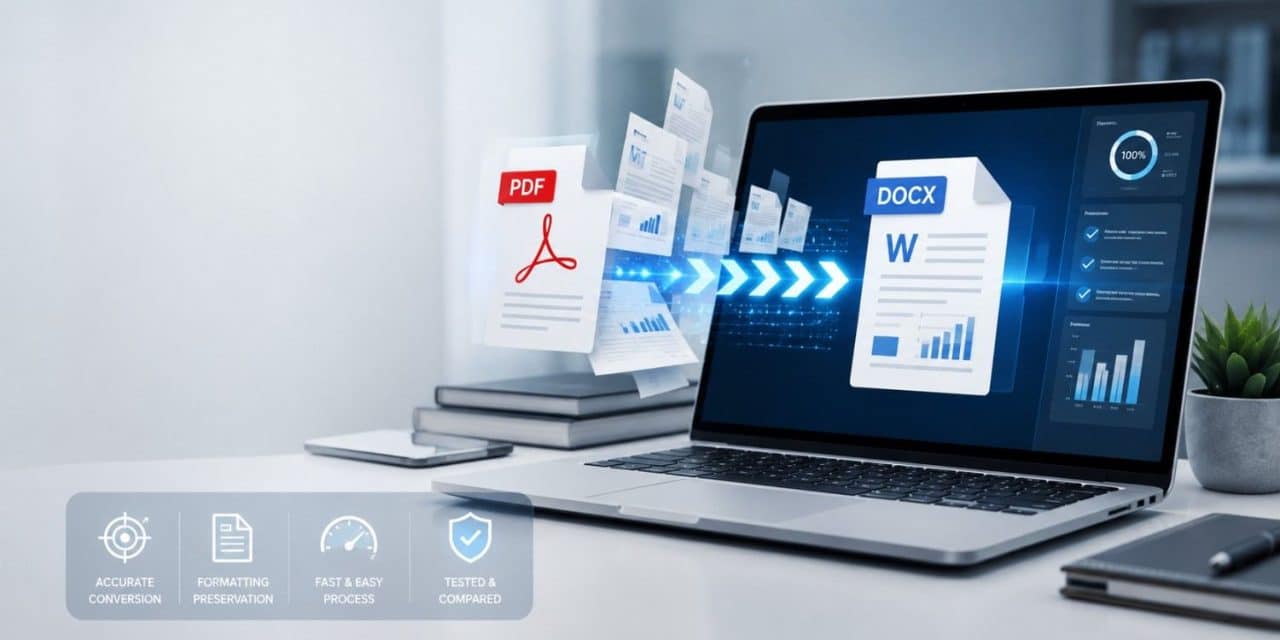
A PDF to Word converter takes a fixed-layout PDF file and rebuilds it as an editable DOCX document, converting the text, tables, and images back into something you can actually type into. The free versions of the major tools do this well enough for most everyday documents. Where they differ, and where most comparison posts gloss over the real trade-offs, is in formatting accuracy on complex layouts, what happens to your file after you upload it, and how many conversions you actually get before hitting a paywall.
The way I actually test these tools is not with a clean sample PDF, since that tells you almost nothing about how a converter behaves under pressure. I run the same three document types through each tool: a two-column PDF with a data table, a scanned form with a signature, and a contract with footnotes and a header that repeats on every page. Those three cover the failure modes that actually matter in daily work, and the differences between tools only really show up once you push past the simple single-column document every marketing page uses as its demo.
The Free Tool Myth Nobody Checks
There is a common assumption that free PDF to Word converters are a downgraded, watermarked, unreliable version of “the real thing,” and that anyone serious about document quality needs a paid subscription. That has not matched what I have actually seen testing these tools against real business documents: contracts with nested tables, two-column academic PDFs, scanned forms with signatures.
The gap that used to exist between free and paid tools has narrowed substantially, and for a large share of everyday conversion tasks, a free tool now produces output that is functionally indistinguishable from a paid one. Where the real difference shows up is not raw conversion quality on a first attempt, it is in daily limits, file size caps, and whether OCR (the process that turns a scanned image into selectable text) is included for free or locked behind a paywall. Knowing which limitation actually applies to your situation matters more than chasing the highest advertised “accuracy score,” since most of those scores come from each tool’s own internal testing rather than any independent standard.
What Actually Determines Conversion Quality
Before comparing specific tools, it helps to understand what makes a PDF hard to convert in the first place, because this explains why the same tool can perform beautifully on one document and badly on the next.
PDF is a fixed-layout format. It stores where text and images sit on a page, not necessarily how they relate to each other structurally. Microsoft’s own documentation on this is blunt about the limitation: most PDFs don’t include information about structural elements like paragraphs, tables, or columns, which is exactly why a converter sometimes has to guess at structure that a native Word document would already know explicitly. A simple, single-column PDF made directly from a Word document converts almost perfectly because the structure was clean going in. A two-column academic paper, a form with overlapping text boxes, or a scanned document with handwriting is a fundamentally harder reconstruction problem, and no converter, free or paid, handles that class of document flawlessly every time.
Scanned PDFs need OCR, not just conversion. If your PDF is a photograph or scan rather than a digitally created document, there is no underlying text layer to extract. The converter has to run Optical Character Recognition to guess what each character is, and OCR accuracy drops noticeably on low-resolution scans, unusual fonts, or handwriting. This is the single biggest source of disappointing results, and it is worth checking before you blame the converter itself.
Document security settings can block conversion entirely. A PDF that is password-protected, or that has copying and editing restrictions enabled by whoever created it, will often fail to convert at all, or will convert with garbled or missing text, until those restrictions are removed. This trips people up constantly because the error message a converter gives is rarely specific about the actual cause, it just fails silently or produces obviously broken output. If a conversion fails with no clear explanation, checking the PDF’s security settings first, usually visible in the document properties of any standard PDF reader, saves a lot of wasted time trying different converters that were never going to succeed against a locked file.
Where your file actually goes matters. Most free online converters work by uploading your file to a remote server, running the conversion there, and sending back a download link. That is fine for a public document, but it is worth pausing on for a contract, a medical record, or anything containing personal or financial information. A smaller number of tools run the entire conversion inside your browser using JavaScript, meaning the file never actually leaves your device. That distinction rarely gets mentioned in most comparison posts, and it is the first thing I check before uploading anything sensitive.
The Best Free PDF to Word Converters, Compared
I focused this comparison on established, verifiable tools rather than the wave of newer sites that publish “unbiased comparisons” ranking their own product first, which is a pattern worth watching for in this space specifically. A striking number of PDF tool review posts are published by the same company whose converter conveniently comes out on top, so treat any single-source ranking, including parts of this one, as a starting point for your own testing rather than a final verdict.
Adobe Acrobat Online
Adobe created the PDF format, and Adobe’s free online PDF to Word converter generally produces the most accurate output on complex layouts, particularly documents with mixed fonts, embedded graphics, or multi-column designs. No credit card is required for basic conversions, though a free Adobe account is needed and daily conversion limits apply before it pushes you toward a paid plan.
The OCR built into Acrobat is genuinely strong for scanned documents, and because Adobe controls both ends of the format, edge cases that trip up third-party tools (unusual embedded fonts, specific PDF versions, certain security settings) tend to be handled more gracefully here than elsewhere. The trade-off is the account requirement and the daily cap, which makes it a poor fit if you need to batch-convert a large folder of files in one sitting.
There is a practical reason Adobe tends to win formatting-accuracy tests specifically: every other tool on this list has to reverse-engineer a format Adobe itself defined, using publicly available specifications and their own interpretation of edge cases. Adobe’s converter has the advantage of internal knowledge of exactly how its own format encodes ambiguous structural elements, which is why it consistently handles the hardest layouts, dense tables, mixed embedded fonts, forms with overlapping fields, slightly better than tools built by companies working from the outside in.
Best for: complex layouts, scanned documents needing reliable OCR, one-off conversions where accuracy matters more than volume.
Smallpdf
Smallpdf’s PDF to Word tool requires no account for a basic conversion and generally preserves layout, fonts, and table structure well on standard business documents. It states that it is GDPR compliant and ISO/IEC 27001 certified, and that uploaded files are automatically deleted an hour after processing unless you choose to save them to an account, which is a meaningfully more specific privacy commitment than most competitors publish.
The free tier’s daily task limit is the main constraint, and OCR for scanned documents sits behind the paid Pro tier rather than being included free. For occasional conversions of digitally created PDFs, the free tier alone covers most needs; for scanned documents or frequent daily use, you will likely hit the ceiling quickly. Smallpdf’s pro tip worth taking seriously, keeping a backup of the original PDF before converting, matters more than it sounds. Once you have made edits in Word and lost track of the source file, there is no clean way to re-run the conversion with different settings if the first attempt turns out to have a formatting issue you did not catch immediately.
Best for: clean, polished conversions of standard business documents with a clear stated privacy policy.
iLovePDF
iLovePDF’s PDF to Word converter supports uploads directly from your device, Google Drive, or Dropbox, and it explicitly handles both digitally created and scanned PDFs, running OCR automatically when it detects a scanned page rather than requiring you to toggle a separate setting. That automatic detection is a small but genuinely useful detail that saves a step compared to tools that make you diagnose your own file first.
Like most free online converters, the free tier caps how many files you can process per session and per day, and very large files may push you toward the paid plan. Batch conversion is available even on the free tier, up to a point, which makes it a reasonable choice if you occasionally need to convert a handful of files at once rather than strictly one at a time. In practice, this is the tool I reach for most often when a client sends over a folder of five or six related PDFs at once rather than a single document, since the alternative of converting each one individually through a stricter one-at-a-time tool adds up fast when you are doing it regularly.
Best for: documents pulled directly from cloud storage, mixed batches of scanned and digital PDFs.
Microsoft Word’s Built-In PDF Import
This is the option most people forget they already have. If you own Microsoft Word, you can open a PDF directly through File > Open, and Word will convert it into an editable document automatically, no separate tool, no upload to a third-party server, no daily limit. According to Microsoft’s own documentation on opening PDFs in Word, this works most reliably on text-heavy PDFs with straightforward layouts, and Microsoft is upfront that charts, footnotes, and complex structural elements are the parts most likely to convert imperfectly.
Because the conversion happens locally in the desktop app rather than through an upload, this is the strongest privacy option for anyone who already has a Word license and does not want a sensitive document touching a third-party server at all. The downside is layout fidelity on anything beyond simple documents; Word’s reflow engine was built primarily for text extraction, not pixel-perfect layout reconstruction, so a heavily designed PDF will likely need manual cleanup afterward.
Best for: anyone who already owns Word and wants a private, local conversion of a straightforward text document.
Google Docs
The lowest-friction option if you already have a Google account: upload the PDF to Google Drive, right-click, and open it with Google Docs, which converts it automatically. It works reasonably well for simple text documents, but tables, multi-column layouts, and embedded images are the areas where it struggles most compared to the dedicated tools above. It is worth noting this route was never actually designed as a dedicated PDF conversion feature; it is a side effect of Google Docs being able to open and interpret a PDF’s text content, which explains why it handles structure less gracefully than tools purpose-built for the conversion task specifically.
Best for: quick, no-signup-required text extraction from simple PDFs when you already live in the Google ecosystem.
Quick Comparison Table
| Tool | Account Required | OCR Included Free | File Processing Location | Best For |
| Adobe Acrobat Online | Yes (free) | Yes | Remote server | Complex layouts, scanned documents |
| Smallpdf | No | No (Pro only) | Remote server | Clean documents, clear privacy policy |
| iLovePDF | No | Yes, automatic | Remote server | Mixed digital and scanned batches |
| Microsoft Word (built-in) | Requires Word license | Limited | Local device | Privacy-sensitive, simple text documents |
| Google Docs | Yes (Google account) | Yes, automatic | Remote server (Google) | Quick simple text extraction |
Formatting Problems and How to Actually Fix Them
Every converter occasionally produces a document that looks noticeably different from the original PDF, and most troubleshooting guides just tell you to “try a different tool” without explaining why that sometimes works. Here is what is actually happening in the most common failure cases.
Tables break apart or misalign. This usually happens when the original PDF does not use a true table structure internally, and the text just happens to be visually arranged in rows and columns using spacing and tabs. The converter has to infer the table structure rather than read it directly, and complex or borderless tables are the hardest case. If a specific table keeps breaking, converting that page in isolation and rebuilding just that table manually in Word is often faster than fighting the whole-document conversion repeatedly.
Fonts substitute to something unexpected. If the original PDF embeds a licensed or unusual font that is not installed on your system, Word will substitute the closest match it can find, which can shift line spacing and page breaks throughout the document. This is a font licensing limitation, not a conversion bug, and switching converters will not fix it. The workaround is to identify the substituted font and manually reapply the correct one if you have a license for it.
Multi-column layouts read out of order. Academic papers and newsletters formatted in two or three columns are one of the hardest cases for any converter, because the tool has to correctly guess reading order (down the first column, then the second) rather than reading straight across the page. Adobe’s engine tends to handle this more reliably than most free alternatives, which is the main reason I reach for it specifically on academic or heavily designed source documents rather than my usual default.
Headers, footers, and footnotes end up out of place. Microsoft’s own guidance flags this directly: when Word doesn’t recognize a footnote as a footnote, it treats it as regular body text and places it wherever it falls in the reading order, not necessarily at the bottom of the page where it belongs. If footnotes matter for your use case, check the converted document specifically for this before assuming the conversion succeeded cleanly.
Images shift position or lose their wrap settings. A PDF anchors images to an exact pixel position on the page, while Word wants to wrap images relative to surrounding text. When a converter reconstructs that relationship incorrectly, images can end up floating in the wrong place, overlapping text, or resized unexpectedly. This is usually a quick manual fix, right-click the image, adjust the text wrapping setting, but it is worth checking every image individually in a document that matters rather than assuming the first one you check represents the rest.
Bullet points and numbered lists renumber incorrectly. Nested lists with mixed numbering styles, roman numerals under letters under numbers, are a common source of frustration, since the converter has to infer list hierarchy from indentation and formatting cues rather than reading an explicit list structure the way Word itself stores lists internally. If a document relies heavily on structured numbering, it is worth double-checking the list logic specifically rather than trusting it carried over correctly.
Handling Sensitive Documents Correctly
A contract, a tax form, a medical record, or anything containing personal information deserves a slightly different decision process than converting a public flyer. Before uploading a sensitive PDF to any online tool, it is worth checking three things: whether the tool states a specific data retention and deletion policy rather than a vague privacy statement, whether the conversion runs in your browser locally or uploads to a remote server, and whether the file transfer is encrypted in transit.
If a document is genuinely sensitive and you already have Microsoft Word installed, opening it directly through File > Open keeps the entire process local and avoids the upload question altogether. For anyone who regularly handles confidential documents and does not want to think about this decision every single time, that built-in option is worth defaulting to rather than reaching for whichever online tool ranks first in a search result.
Company policy is worth checking too, and not just personal preference. A growing number of organizations now explicitly prohibit uploading client contracts or financial documents to unvetted third-party web tools as part of their data handling policy, and an employee converting a document through an unapproved site can create a compliance problem that has nothing to do with whether the conversion itself worked well. If you are converting documents on behalf of a client or employer rather than for personal use, it is worth confirming which tools, if any, are actually approved before defaulting to whichever converter comes up first in search results.
PDF to Word for Business and Freelance Work
Document conversion shows up constantly in day-to-day business work in ways that are easy to underestimate until you actually track how often it happens: turning a client’s finalized PDF proposal back into an editable draft, pulling a table of figures out of a report to rebuild in a spreadsheet, or converting a signed contract into an editable format to redline changes before a renewal. I go into more of the specific scenarios where this actually saves time in my piece on the benefits of using a PDF to Word converter for business, including cases where converting back and forth between formats repeatedly is actually the wrong workflow and editing the PDF directly is faster.
Freelancers in particular tend to accumulate a stack of small, recurring document tasks: client contracts arriving as PDFs, invoices that need reformatting, old proposals that need to be repurposed as templates. If document conversion is one recurring task among several, it is worth looking at it alongside the broader toolkit I cover in online tools every freelancer should use, since a converter that integrates with the same cloud storage you already use for invoicing and contracts saves more time than a slightly more accurate one that does not.
The Reverse Direction and Related Conversions
PDF to Word is only half of a workflow that usually runs in both directions. Once you have edited a document in Word, you typically need to convert it back to PDF before sending it to a client or filing it, and the tools worth using for that are not always the same ones that handle PDF to Word best. I cover the specific free options and their trade-offs in the best ways to convert Word to PDF for free.
There is also a subtler distinction worth understanding: converting a PDF to Word and directly editing a PDF are not the same task, and choosing the wrong one wastes time. If you only need to fix a typo, delete a page, or add a signature, converting the whole document to Word and back introduces formatting risk for no real benefit. My breakdown of making a PDF document editable by converting it to Word covers when full conversion is actually the right call versus when a dedicated PDF editor gets the job done faster, and my overview of how online PDF editors work is worth a look if direct editing turns out to be the better fit for what you actually need to do.
A rough rule of thumb I use: if the change is small, a signature, a date, a single corrected number, edit the PDF directly. If the change is substantial, rewriting a paragraph, restructuring a section, adding a new page of content, converting to Word first and doing the real editing there is faster and produces a cleaner result than trying to force those changes through a PDF editor’s more limited text tools.
For documents that started life as an image rather than a PDF, a slightly different tool applies before conversion to Word even becomes relevant; I cover the reasoning in why you need a JPG to PDF converter for anyone working backward from scanned images rather than starting with an existing PDF.
Handling Large Files and Bulk Conversion Needs
Most free tiers cap file size somewhere between 10 and 25 MB, which is fine for a typical text document but becomes a real constraint for image-heavy reports or scanned multi-page contracts. If a file is too large to upload directly, compressing it first before conversion is the standard fix, and I cover the specific approach in my guide to the best online PDF reducer tools, since a compressed file often converts more reliably in addition to clearing the size limit. Compression works because most of a large PDF’s size comes from embedded images at a resolution far higher than needed for screen reading, and reducing that resolution before conversion rarely affects the readability of the text that actually needs to convert cleanly.
If your actual need is regularly removing specific pages from a PDF rather than converting the whole document, that is a separate and often faster task than a full conversion; my walkthrough on deleting pages from PDFs for extra work efficiency covers that narrower workflow directly. Trimming a hundred-page report down to the three pages you actually need before converting is also a practical way around a file size limit, and it usually produces a cleaner conversion than running the whole document through and then deleting the unwanted pages in Word afterward. And if document conversion is just one piece of a broader file-format puzzle you deal with regularly, whether that includes video, audio, or image formats alongside PDFs, my roundup of the top file converters worth knowing about covers the adjacent tools that tend to come up in the same workflow, alongside more specialized options like the feature set covered in PDFBear’s convenient PDF features for anyone managing a high volume of PDF tasks beyond just conversion.
Common Mistakes That Waste Time
The most common mistake is not checking whether a PDF is scanned or digitally created before choosing a tool, then blaming the converter when a non-OCR tool fails on a scanned document it was never built to handle. Checking this takes five seconds: open the PDF and try to select a line of text with your cursor. If you can select and highlight it normally, it is a digital PDF and any standard converter will work. If clicking and dragging just selects the whole page like an image, it is scanned, and you need a tool with OCR specifically.
A second mistake is converting a sensitive document through whichever tool appears first in a search result without checking its data handling policy at all, especially since a meaningful share of the sites that rank for “PDF to Word converter” are exactly the kind of newer, unverified tools mentioned earlier that publish self-serving reviews of their own product. Sticking to established tools from companies with a real reputation to protect, Adobe, Microsoft, Google, or a vendor like Smallpdf that publishes a specific certification and retention policy, is a reasonable filter when you cannot personally audit a tool’s backend.
A third, quieter mistake is repeatedly converting the same document back and forth between PDF and Word during a multi-round editing process. Every round trip through conversion introduces a small chance of formatting drift, spacing that shifts slightly, an image that moves a few pixels. For a document going through several rounds of edits, it is worth doing all the editing in Word first and converting to PDF only once at the very end, rather than converting back and forth after every round of changes.
A fourth mistake, more common with teams than individuals, is standardizing on whichever converter one person happened to discover first without anyone actually comparing it against the alternatives on the team’s typical document types. A converter that a designer finds perfectly adequate for text-heavy internal memos might handle the sales team’s pricing tables badly, and nobody notices until a client receives a document with a garbled table months later. Running the same three or four representative documents your team actually deals with through two or three converters once, and picking based on that rather than reputation alone, catches this before it becomes a recurring, quietly embarrassing problem.
Online Tools Versus Desktop Software
Every tool covered so far is either fully online or, in Word’s case, part of software you already own. There is a third category worth mentioning briefly: dedicated desktop PDF software like Adobe Acrobat Pro’s installed application, which processes files locally rather than through a browser upload, similar to the privacy advantage Word’s built-in conversion offers.
The trade-off is upfront cost and setup. A desktop license makes sense if document conversion is a genuinely constant part of your workflow, several files a day, frequently sensitive, and the subscription cost is easily justified by the time and privacy benefit. For occasional or moderate use, a free online tool paired with Word’s built-in option for anything sensitive covers nearly every situation without the ongoing cost. The mistake I see most often is people assuming they need the paid desktop software before actually testing whether the free online options meet their real, current need, rather than the hypothetical heavier need they imagine they might have someday.
Frequently Asked Questions
Is it safe to convert a PDF online for free?
It depends on the tool and the document. For non-sensitive files, established tools like Adobe, Smallpdf, or iLovePDF are reasonably safe. For contracts, medical records, or anything confidential, check the tool’s stated data retention policy first, or use Microsoft Word’s built-in local conversion to avoid uploading the file entirely.
Why does my converted Word document look different from the PDF?
Complex layouts, embedded fonts not installed on your system, and multi-column designs are the most common causes. PDF stores visual positioning rather than document structure, so the converter has to infer structure that was never explicitly stored in the original file.
Do free PDF to Word converters include OCR for scanned documents?
It varies by tool. Adobe Acrobat Online and iLovePDF include OCR in their free tiers. Smallpdf locks OCR behind its paid Pro plan. Always check a specific tool’s OCR policy before assuming it is included.
What’s the file size limit for free PDF to Word converters?
Most free tiers cap files somewhere between 10 and 25 MB, though this varies by tool and changes periodically. Compressing a large PDF before conversion is the standard workaround if you hit that limit.
Can I convert a PDF to Word without creating an account?
Yes, with most tools. Smallpdf and iLovePDF both allow basic conversions without signing up. Adobe Acrobat Online requires a free account even for its no-cost tier.
Is Microsoft Word’s built-in PDF conversion as good as a dedicated online tool?
For simple, text-heavy documents, yes, and it keeps the file entirely local rather than uploading it anywhere. For complex layouts with tables, columns, or graphics, dedicated tools like Adobe Acrobat generally produce a more accurate result.
Can I convert a password-protected PDF to Word?
Only after removing the password or restriction first, usually through the same tool that opens the PDF or a dedicated unlock tool. Most converters either fail or produce garbled output when a document has active security restrictions, and the error is rarely explicit about the actual cause.
How many times can I convert PDFs for free before hitting a limit?
This varies significantly by tool and changes over time as pricing models shift, so check the specific tool’s current free tier limits rather than relying on older comparison posts. Smallpdf’s free tier has historically been the most restrictive; iLovePDF and Adobe tend to allow more before requiring payment.
The Bottom Line
For most everyday documents, Smallpdf or iLovePDF’s free tiers handle the job without an account or a subscription. Reach for Adobe Acrobat Online specifically when you are dealing with a complex layout, a scanned document, or anything where formatting accuracy genuinely matters more than convenience. If the document is sensitive and you already own Microsoft Word, opening it directly through File > Open is the more private option, even if the layout fidelity is a step behind the dedicated tools. Whichever you choose, check whether your PDF is scanned or digital before you start, confirm it is not password-protected, and treat any tool’s self-published accuracy claims, including some of the specifics in this comparison, as a starting point for your own test rather than a guarantee.