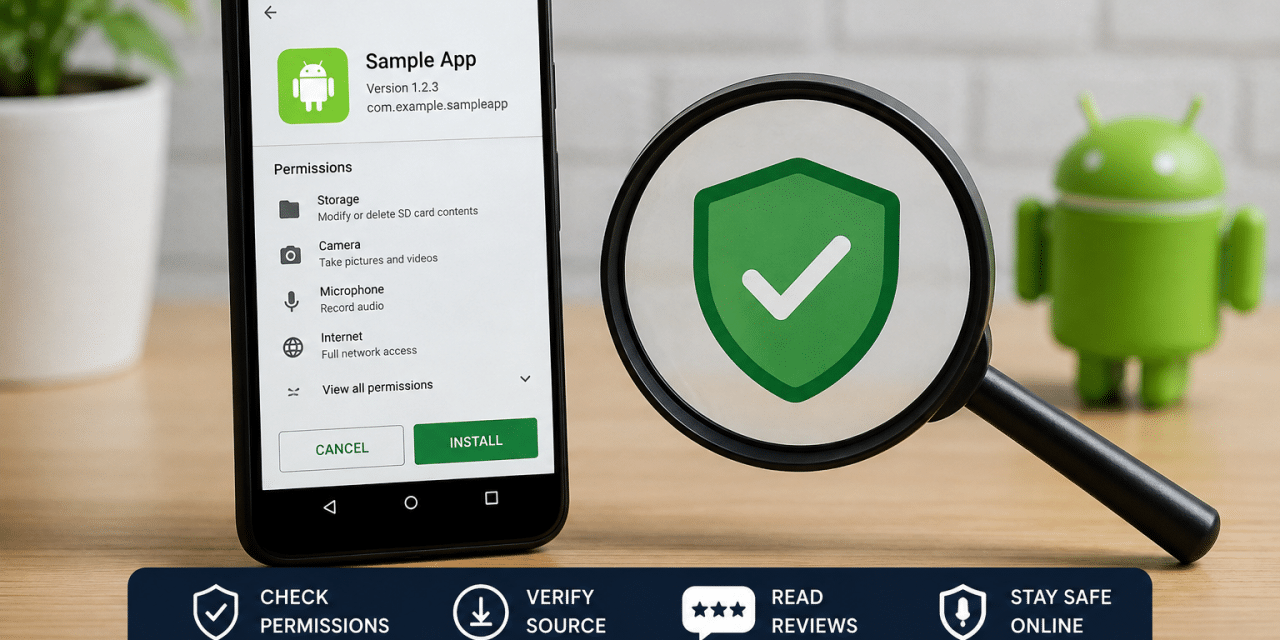
You found an app you need. Maybe it is not listed in the Play Store in your country. Maybe you want to roll back to an older version after an update removed a feature you relied on. Maybe a friend or a company you trust sent you a file directly instead of a store link. Maybe you are trying to install a beta build a developer shared before it reached wider release. Whatever the reason, you are now looking at an APK file, and Android is asking you a question it does not ask when you install something from the Play Store: are you sure you want to do this?
That question is the real subject of this guide. Downloading an APK is mechanically simple: a few taps and a settings toggle. The part that actually matters, and the part most guides skip past on their way to the install steps, is deciding whether the file in front of you deserves your trust. Simply finding a working download button is not the same thing as confirming the file behind it is safe, current, and actually what it claims to be. A download button tells you nothing about who built the file, whether it matches the developer’s original release, or what it will ask your phone for once installed.
This article covers both halves of that problem: what an APK actually is, how Android’s installation permissions work, why installs fail even with legitimate files, how Google Play Protect fits into the picture and where its protection stops, and a practical framework for judging a source before you tap Install rather than after something has already gone wrong. Safety comes first in this guide, deliberately, because the mechanical steps are the easy part and the evaluation step is the one that actually determines the outcome.
What Is an APK File, Exactly
An APK, short for Android Package Kit, is the file format Android uses to package and install applications. It contains an app’s compiled code, resources, and a manifest describing its permissions and requirements. Every app on an Android device, including ones from the Play Store, is installed from an APK, whether Google Play handles that step automatically or you download the file yourself.
That last point is worth sitting with, because it reframes the whole topic. People often talk about “APK apps” as if they are a separate category from normal apps. They are not. An APK is simply the container format Android uses for installation, the same way a .exe file installs software on Windows or a .dmg installs it on a Mac. When you tap Install on the Play Store, Google fetches an APK (or a set of APK components, more on that shortly) and installs it on your behalf, quietly, without ever showing you the file directly.
Downloading an APK yourself means doing that fetching and installing step manually, from a source you chose, instead of letting the Play Store do it invisibly. The code inside a legitimate APK is the same kind of code that runs when you install anything through official channels. What changes is who verified the file before it reached you, and that is where the real risk conversation begins.
Why Android Blocks APK Installs by Default
Android does not allow installation from outside the Play Store without an extra confirmation step, and this is a deliberate design choice rather than an accident or an overreaction. Google built the Play Store as a single, review-gated distribution channel, and it wants a visible speed bump before anything installs outside that channel. The warning you see, often phrased as “For your security, your phone is not allowed to install unknown apps from this source,” exists specifically to interrupt a casual tap and make sure you are choosing to proceed rather than installing something by accident.
It is worth being precise about what that warning does and does not mean. It does not mean the specific file you downloaded has been scanned and flagged as harmful. It is a generic, blanket caution that appears for any installation attempt from a source Android has not already been granted permission to use, regardless of whether that particular file is safe or not. Treating the warning as a verdict on the file itself is a common misreading. It is closer to a locked door than a smoke alarm: it slows you down on purpose, it does not mean there is already a fire.
The Per-App-Source Permission Model Since Android 8
How that permission actually works changed significantly with Android 8 (Oreo), and the difference matters for understanding what you are actually agreeing to.
On Android 7 and earlier, “Unknown sources” was a single global switch located in the Security settings. Turning it on allowed installation from any app capable of triggering an install, a web browser, a file manager, a messaging app, all of them at once. Turning it off blocked all of them at once. It was a blunt, all-or-nothing setting.
Starting with Android 8, Google replaced that global switch with a permission scoped to each individual source app. Instead of one setting covering the whole device, each app that might trigger an installation, your browser, your file manager, a specific messaging app, has its own independent “Install unknown apps” permission. Granting that permission to Chrome does not grant it to your file manager. Granting it to your file manager does not grant it to a messaging app you later use to receive a file. Each source is evaluated and approved on its own.
This distinction trips people up more than the mechanics themselves. Someone grants permission once, through one app, and later assumes the setting is “already on” for their whole phone, then gets confused when a different app triggers the same blocked-install warning again. That is not a bug or a inconsistency. It reflects Android intentionally narrowing the scope of risk to a single source at a time instead of leaving one switch that, once flipped, applies to everything indefinitely. Understanding this model is one of the more useful pieces of practical knowledge a reader can take from this topic, because it explains a large share of the confusing prompts people run into.
APK vs Play Store App: What Actually Changes
Once an app is installed, the underlying code runs the same way regardless of how it got there. What differs is everything surrounding the installation: who verified it, how it gets updated, what safety nets apply, and what recourse you have if something goes wrong.
| Factor | Play Store Install | Direct APK Install |
| Source verification | Google reviews the app listing and enforces developer account requirements before publishing | You are responsible for evaluating the source yourself; there is no equivalent review step |
| Automatic updates | Handled automatically through the Play Store | Not automatic; you must manually check for and download new versions unless the app includes its own updater |
| Malware scanning | Play Protect scans the app before and after publishing | Play Protect still scans installed apps on-device regardless of source, but the file skips the Play Store’s pre-publication listing review |
| Reporting and refunds | Google Play’s built-in reporting and refund system applies | No equivalent consumer protection mechanism exists for a direct download |
| Regional or version restrictions | Enforced according to Play Store distribution rules | Often bypassable, which is frequently the specific reason someone chooses to sideload |
The automatic-updates row deserves more attention than it usually gets. A sideloaded app has no built-in relationship with the Play Store, so it will not notify you or update itself unless the developer specifically built that functionality in. That means the ongoing responsibility for staying current, including security patches, shifts onto you. This is a real, ongoing cost that people rarely account for when they first decide to install something outside the Play Store. Readers troubleshooting an installed app’s behavior in more depth, including checking how it renders or what it is doing under the hood, may also find how to inspect elements on an Android device useful as a next step.
APK vs AAB, in Plain Language
A related term that causes confusion is AAB, or Android App Bundle. As explained in Google’s official Android App Bundle documentation, an AAB is not something you install directly on a device. It is a publishing format developers upload to the Play Store. Google then uses that bundle to generate optimized, device-specific APK components at install time, through a process called dynamic delivery, tailoring what gets installed to your specific device configuration, screen density, processor architecture, and language. This is part of the same broader packaging process covered in guides on how Android app development companies package apps for distribution across both the Play Store and direct-download channels.
This distinction has a practical consequence. An APK you download from a third-party source is often a single, generic build rather than the device-optimized version the Play Store would have generated from the same underlying app bundle. That generic APK can be larger, may include resources your device does not need, and in some cases behaves slightly differently than the Play Store version of the identical app. This is one legitimate, non-malicious reason a “correct” APK downloaded from a reputable mirror can still install differently, run differently, or fail differently than what the Play Store would have delivered.
According to Android’s official application fundamentals documentation, an APK is the archive file Android-powered devices use to install an app, and it is generated as the final installable unit whether the original source was an app bundle or a standalone build.
Is Downloading APK Files Actually Safe?
This is the question underneath nearly every search that leads someone to an article like this one, and it deserves a direct answer rather than a hedge.
Downloading and installing APK files is not inherently dangerous. An APK is a file format, not a threat category. The actual risk is a function of two separate things: where the file came from, and whether the file itself has been tampered with or altered from what the original developer published. A well-sourced APK from a legitimate developer carries meaningfully different risk than an anonymous file from an unfamiliar site with no verifiable connection to the app’s actual publisher.
It also helps to separate two categories of risk that get lumped together in most discussions of APK safety. The first is malware risk: a file that has been deliberately modified to harm your device, steal data, or install additional unwanted software. The second is permission and privacy risk: a legitimate, non-malicious app that simply requests more access than its function requires, whether for aggressive advertising, data collection, or overreach unrelated to malicious intent. Most public anxiety about APK files focuses on the first category. A meaningful share of real-world harm falls into the second, and it is easy to overlook because the app is not “malware” in the traditional sense, it is simply asking for more than it needs.
Where possible, downloading directly from the official developer’s own website, when one is offered, is preferable to a third-party mirror, since it removes an entire layer of source uncertainty. When that option is not available, the evaluation steps below become the primary safeguard.
It also helps to think about file integrity separately from source reputation, because the two are related but not identical. A source can be broadly reputable while still, occasionally, hosting a file that was uploaded incorrectly, left outdated, or bundled with something the uploader added without full disclosure. This is why the evaluation framework below treats version history and file-specific signals as their own checkpoint, rather than assuming that a generally trustworthy site guarantees every individual file it hosts is current and unmodified. Trusting a source is a starting point, not a substitute for checking the specific file in front of you.
Another distinction worth making clearly: the risk profile of a widely used app mirrored across many established repositories is different from the risk profile of an obscure or niche app available on only one or two sites you have never encountered before. Popularity and cross-referencing across multiple independent, reputable sources is itself a form of validation, since a tampered file is harder to distribute consistently and undetected across several unrelated platforms than to plant on a single obscure site.
Does Google Scan Sideloaded Apps Too?
Yes, and this point is frequently underexplained. Google Play Protect performs on-device scanning that applies to apps regardless of how they were installed, including apps installed via a directly downloaded APK, not only apps obtained through the Play Store. Google’s own Play Protect support documentation confirms that Play Protect checks your device for potentially harmful apps from sources beyond the Play Store, and it can warn about or remove installations it identifies as harmful even when the source was never a Play Store listing.
This does not make sideloading equivalent to a Play Store installation in terms of safety. Play Protect is a detection layer that looks for known malicious signatures and behavior patterns; it is not a review process that evaluates a developer’s intentions, data practices, or business legitimacy before you ever see the app. A clean Play Protect scan means no known threat pattern was detected at that moment, not that the app has been vetted the way a Play Store listing has been. Treating it as a backstop rather than a guarantee is the accurate way to think about its role.
A Source-Evaluation Framework You Can Reuse
Rather than relying on a fixed list of “safe” website names, which becomes outdated and does not help with less common or region-specific apps, it is more useful to apply a consistent evaluation framework to any source you encounter.
- Who operates the website? A site with a clearly identified operator, a track record, and public accountability represents a meaningfully different risk profile than an anonymous domain with no ownership information. This does not guarantee safety by itself, but a named, established operator has a reputation to protect that an anonymous mirror does not.
- Does the listing match the official developer? Where the app has an official website or a known developer name, compare the package name and developer identity shown on the download page against that official source. A mismatch, or a developer name that cannot be independently verified, is a meaningful warning sign.
- What is the file’s version and publication history? Reputable third-party repositories typically show a version history and upload dates. Cross-referencing that history against the developer’s own changelog, when available, helps confirm you are looking at a genuine, current release rather than a stale or altered one.
- What do credible community reports say? User comments and forum discussion are inconsistent and often unreliable individually, but a consistent, recent pattern of reports describing a specific file as broken, behaving unexpectedly, or bundled with unwanted extras is worth taking seriously, particularly when multiple independent sources describe the same issue.
- What permissions does the application request? The permission list Android displays before installation is a genuine, specific signal, not boilerplate text to click past. As Android’s official permissions overview explains, permissions exist specifically to protect sensitive data and restricted actions on the device, so a mismatch between what an app claims to do and what it asks to access is one of the most reliable indicators available to an ordinary user, covered in more detail below.
No single criterion guarantees safety on its own. Applied together, they shift the odds substantially in your favor, in the same way that checking multiple signals before a secondhand purchase reduces risk without eliminating it entirely.
Permission Red Flags by App Category
Permissions only mean something in context. A camera app requesting camera access is expected and unremarkable. The same request from a flashlight app is a legitimate cause for scrutiny. The table below outlines reasonable expectations by app category, alongside requests that should prompt a second look.
| App Category | Reasonable Permissions | Red Flags |
| Flashlight or simple utility | Camera (flash control only), storage | Contacts, SMS, call logs, precise location |
| Photo editor | Storage, camera | SMS, phone state, background location access |
| Simple offline game | Storage, occasionally network access | Contacts, call logs, accessibility services |
| Messaging app | Contacts, SMS, camera, microphone | Accessibility services combined with SMS and contact access, a pattern sometimes associated with data harvesting |
| PDF or file viewer | Storage access | Camera, microphone, precise location |
Accessibility service permissions warrant extra caution across every category, not only the ones listed above. According to Android’s developer documentation on accessibility services, this permission is designed to let an app inspect screen content and interact with other apps on the user’s behalf, which is exactly what makes it one of the more consequential permissions an app can request, and one of the permission types most associated with the kind of abuse that on-device protections like Play Protect are specifically designed to catch. A request for accessibility access from an app whose stated purpose does not obviously require it deserves particular scrutiny before you proceed.
How to Download and Install an APK File Step by Step
Once you have evaluated the source and reviewed what the app is asking for, the technical process of installing an APK is short. The exact steps differ depending on which version of Android your device is running.
Android 8 and Later: Per-App Permission Steps
- Download the APK file using the browser, messaging app, or file manager you intend to install it from. If you do not already have one you trust, setting up a file explorer app on Android makes locating and managing downloaded files considerably easier.
- Locate the downloaded file, typically in your device’s Downloads folder or notification shade, and tap it to begin installation.
- If this specific source has not already been granted permission, Android will display a blocked-install warning rather than proceeding directly.
- Tap Settings from within that warning screen, which takes you directly to the “Install unknown apps” permission page for that specific source application.
- Toggle “Allow from this source” on for that app.
- Return to the installation prompt, either automatically or by reopening the downloaded file.
- Review the permissions the app is requesting before confirming. This is the point to pause if anything looks mismatched against the app’s stated purpose.
- Tap Install and wait for the process to complete.
- After installation, it is worth periodically reviewing which apps currently hold “Install unknown apps” permission, under Settings, then Apps, then the special access section for this permission, rather than assuming you remember every source you approved in the past.
Because this permission is scoped per source rather than applied globally, granting it once does not extend automatically to a different app later. Seeing the same blocked-install warning again through a different browser, file manager, or messaging app the next time is expected behavior rather than a sign of a problem. If you are moving a downloaded APK from one device to another rather than downloading it fresh on each one, a guide on transferring files between Android devices covers the available methods.
Older Android Versions: The Global Toggle
On Android 7 and earlier, the setting works differently. Go to Settings, then Security, and enable “Unknown sources.” Because this applies as a single global switch covering every app on the device rather than one specific source, it is worth turning this setting back off immediately after completing the installation. Leaving it enabled continues to lower the friction for any future installation attempt on the device, not only the one you intended to allow, which meaningfully increases exposure over time compared with the more scoped Android 8+ model.
Fixing the Most Common APK Install Errors
Two errors account for the large majority of installation problems people encounter, and both have mechanical, explainable causes rather than mysterious ones.
“App Not Installed as Package Appears to Be Invalid”
This message typically points to one of two underlying causes: a signature mismatch, or a corrupted file (covered separately below).
Every APK is cryptographically signed with a developer certificate, and Android uses that signature to verify that updates to an already-installed app are coming from the same source as the original install. As Android’s official app signing documentation explains, all APKs must be digitally signed with a certificate before they can be installed or updated on a device. A signature mismatch occurs when you already have a version of an app installed that was signed with a different developer certificate than the version you are now trying to install, commonly when switching between a Play Store version and a directly downloaded version of the same app, or between two different third-party sources that signed their builds independently.
Android deliberately refuses to let a differently signed APK overwrite an existing installation. This is a security measure, not a defect: without it, an attacker could theoretically distribute a malicious update to an app already sitting on your device, and Android’s signature check exists specifically to prevent that scenario.
The practical fix is to uninstall the existing version of the app first, then install the new one. It is worth understanding, before doing this, that uninstalling will remove any local app data that is not backed up externally, whether to the developer’s own cloud sync feature or to a service like Google’s account-based app backup where the app supports it. Checking for an in-app backup or export option before uninstalling is a reasonable precaution when the app stores anything you would not want to lose.
Parse Errors From Incomplete Downloads
A parse error, distinct from the invalid-package error above, more often indicates that the downloaded file itself is corrupted or incomplete rather than a signature conflict. This is more common than people expect, particularly over unstable mobile data connections, where a download can appear finished in the notification shade while the underlying file was actually truncated partway through.
Re-downloading the file, ideally over a stable connection, resolves the large majority of parse errors. If the same error persists after a clean re-download attempt, that is a stronger indication the source file itself may be defective rather than the connection being the problem, and it is a reasonable point to reconsider the source entirely rather than continuing to retry.
Common Misconceptions About APK Files
“APK files are illegal.” The APK format itself carries no legal status, and downloading or installing one is not illegal on its own. What can create legal exposure is downloading pirated copies of paid apps or modified versions distributed without the original developer’s authorization. The distinction is between the file format, which is neutral, and specific unauthorized or infringing content, which is a separate issue entirely.
“A professional-looking APK website means the file is safe.” A polished, well-designed website is not difficult to build and communicates almost nothing about the integrity of the file behind the download button. Convincing, professional-looking sites have hosted altered or outdated files, while plainer-looking archive sites have sometimes hosted exactly what they claimed. Site design is not a reliable safety signal by itself.
“A clean antivirus scan guarantees safety.” Scanning tools, including Play Protect, detect known threat signatures and recognizable malicious behavior patterns. They are not equipped to catch every new or custom-built threat, and they do not evaluate whether an app’s legitimate-looking permission requests are being used appropriately after installation. A clean scan is one useful data point, not a final verdict.
“APK files can be installed on iPhone.” They cannot. APK is an Android-specific packaging format, and iOS uses an entirely different system for distributing and installing applications. Any site or tool claiming to offer “APK installation for iPhone” is not providing what it appears to promise, and such claims are worth avoiding entirely. Anyone switching platforms and needing their content to come along should instead look at legitimate guidance on moving data from Android to iPhone, which uses each platform’s own supported transfer tools rather than an APK.
“Sideloading is automatically dangerous.” Sideloading is a method of installation, not a risk category by itself. The actual risk depends on the specific source and file, not on the general act of installing outside the Play Store. Plenty of legitimate reasons exist for sideloading, including regional availability, enterprise app distribution, and accessing an older version of an app deliberately. Where sideloading does carry extra risk, such as installing a modified or “modded” version of an app, understanding best practices before installing a modded app becomes especially important, since modified builds change the trust equation in ways a standard unmodified APK does not.
“Play Protect makes every APK safe.” Play Protect meaningfully reduces risk by scanning installed apps regardless of source, but it is a detection layer built to catch known and pattern-matched threats. It does not amount to a guarantee that every app it does not flag is trustworthy, particularly with respect to privacy and permission overreach rather than outright malware.
“Every APK is interchangeable with every version of the same app.” Different builds of the same app can be signed with different developer certificates, packaged differently depending on whether they were generated from an app bundle, or targeted at different device configurations. Two files that appear to be “the same app” are not always functionally or technically identical, which is part of why installation errors and behavioral differences occur even with legitimate files.
These misconceptions share a common thread. Most of them replace a genuine evaluation step with a single, convenient shortcut: a scan result, a website’s appearance, a general assumption about a category of action being safe or unsafe. Shortcuts like these are appealing because they are fast, but they consistently turn out to be poor substitutes for actually looking at the specific file, the specific source, and the specific permissions being requested. None of the misconceptions above are unreasonable assumptions to start with; they are simply incomplete, and treating any one of them as the whole answer is where the real risk tends to creep in.
A Practitioner’s Real-World Verdict
The practical takeaway is that sideloading itself is not the decision that matters most. The decision that matters is how carefully the source gets evaluated before you commit to it.
Sideloading tends to make sense in specific, low-risk situations: an app genuinely unavailable in your region, an older version you specifically want after a company shipped an update you would rather avoid, or an internal application distributed by an employer through its own channel. In each of these cases, the source is either the developer directly or a known, identifiable party, which substantially reduces the uncertainty involved.
It makes far less sense as a way to avoid paying for an app or to bypass restrictions a developer has deliberately put in place, both because that shifts the download toward less accountable, less identifiable sources, and because it introduces separate legal and ethical considerations unrelated to technical safety.
Certain signals should immediately raise suspicion regardless of how convenient the download otherwise looks: a source with no identifiable operator, a listing whose developer name does not match any information available through official channels, a permission list that is clearly mismatched with the app’s stated function, or a pattern of recent, consistent user reports describing the same file as broken or behaving unexpectedly. None of these signals require technical expertise to notice; they require actually pausing to look before installing, which is the single habit that separates a reasonably safe sideloading practice from a risky one.
Before installing anything from outside the Play Store, it is worth running through the source-evaluation framework above rather than treating the download button as the finish line. Check who operates the site, confirm the listing lines up with the official developer where one exists, glance at the version history, weigh any credible community reports, and read the permission list before confirming installation. None of these steps take more than a minute or two combined, and together they address the overwhelming majority of realistic risk a typical user will encounter.
The mechanics of installation are the easy part, covered in detail earlier in this guide. Judging whether a given source deserves your trust, before you are already invested in getting the app working, is the actual skill this topic comes down to, and it is a skill that transfers to every future download, not just the one in front of you right now. Readers who take one thing away from this guide should take the evaluation habit, not the install steps, since the steps rarely change while the sources you will need to evaluate will keep changing indefinitely.
The same evaluation habit applies just as well to other utility apps installed outside the Play Store, whether that is a file manager, a specialized tool, or something like remote desktop access from an Android phone, where the source and permission review matter just as much as they do for any other sideloaded app.
Frequently Asked Questions
Do I need to turn off “Unknown Sources” after installing an APK?
On Android 8 and later, this permission is scoped to the specific source app rather than applied globally, so no additional action is required. On Android 7 and earlier, where the setting is a single global toggle, it is worth switching it back off after finishing the installation.
Can installing an APK void my phone’s warranty?
No. Installing an app from an APK does not root the device or modify the operating system, and standard manufacturer warranties are unaffected by sideloading an app.
Will Play Protect scan an APK installed outside Google Play?
Yes. Play Protect performs on-device scanning that applies to installed apps regardless of their source, including apps installed directly from an APK file, not exclusively apps obtained through the Play Store.
Why does the same app behave differently as an APK versus from the Play Store?
Play Store installations are often generated from an Android App Bundle and optimized for the specific device through dynamic delivery, while a generic APK downloaded from a third-party source is frequently a single, non-optimized build, which can lead to differences in size, resource usage, or behavior.
Can APK files contain viruses?
An APK file can be modified to include malicious code, the same way any executable file format can be altered by a bad actor. This risk depends entirely on the source and the integrity of the specific file, not on the APK format itself, which carries no inherent risk on its own.
How can I verify an APK’s authenticity?
Comparing the package name and developer identity shown at the download source against the developer’s official website or other verified channels is the most practical check available to an ordinary user. Some reputable third-party repositories also publish file hashes that can be cross-referenced for additional confidence.
What permissions should worry me?
Any permission request that does not match the app’s stated function deserves scrutiny, and accessibility service access in particular warrants extra caution given how much control it grants over what an app can read and simulate on your device.
Why won’t my APK install?
The two most common causes are a signature mismatch with an already-installed version of the app, which requires uninstalling the existing version first, and a corrupted or incomplete download, which is usually resolved by re-downloading the file over a stable connection.
Can I install an APK on an iPhone?
No. APK is a format specific to Android, and iOS uses a completely different installation system. Any claim that an APK can run on iPhone is inaccurate.
What is the difference between APK and AAB?
An APK is the installable package format used directly on a device. An AAB, or Android App Bundle, is a publishing format developers submit to the Play Store, which Google then uses to generate optimized, device-specific APKs at install time rather than distributing one universal file to every device.