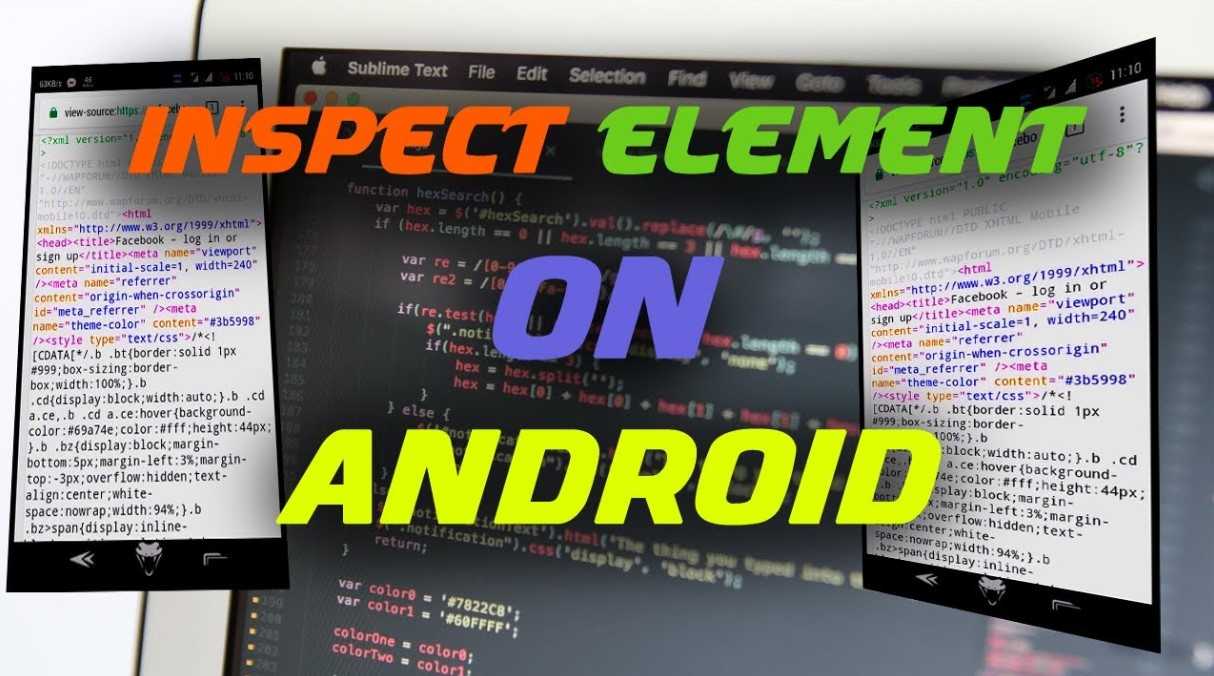
If you want to inspect element on Android, you can do it, but Android phones do not provide the same built-in browser developer tools that you normally get on a desktop. The most reliable method is to connect your Android device to a computer and use Chrome DevTools for remote debugging. This approach lets you inspect HTML, CSS, and JavaScript running in Chrome on your Android phone. It is especially useful for developers, web designers, testers, and anyone who needs to debug web pages on Android.
What Does “Inspect Element” Mean on Android?
Inspect Element is a developer tool that lets you examine the structure and behavior of a web page. On a desktop, you can right-click a page and select an inspection option to view its HTML, CSS, JavaScript, network activity, and other technical details. On Android, the same type of inspection is possible through remote debugging. Chrome DevTools can connect to a Chrome session running on your Android device, allowing you to inspect the page from your computer. This is different from simply viewing the page source. Inspecting an active page allows you to examine elements, modify styles temporarily, check console messages, investigate network activity, and troubleshoot JavaScript behavior.
How to Inspect Element on Android Using Chrome DevTools
The most practical method is to use Chrome on your Android phone together with Chrome DevTools on a Windows, Mac, Linux, or ChromeOS computer.
Step 1: Enable Developer Options on Android
Before connecting your phone to a computer, you need to enable Android’s developer features. Open: Settings → About phone → Build number Tap the Build number several times until Android confirms that developer mode has been enabled. The exact location can vary between manufacturers and Android versions. Android’s official device development documentation.
Step 2: Enable USB Debugging
Once Developer Options are available, open: Settings → System → Developer options → USB debugging Turn on USB debugging. Google’s official instructions for setting up an Android device for development explain how USB debugging allows a development computer to communicate with a physical Android device for testing and debugging. When you connect the phone to your computer, Android may display a message asking whether you want to allow USB debugging from that computer. Approve the connection if you trust the computer.
Step 3: Connect Your Android Phone to the Computer
Connect the Android device using a USB cable. Make sure the phone is unlocked. If Android asks you to allow USB debugging, accept the authorization prompt. Your computer should then be able to detect the device for remote debugging.
Step 4: Open Chrome DevTools
On your computer, open Google Chrome. In the address bar, enter: chrome://inspect Make sure Discover USB devices is enabled. Google’s Chrome documentation describes remote debugging and inspecting content running on a connected Android device through Chrome DevTools. Chrome DevTools mobile debugging documentation.
Step 5: Open the Website on Android
Launch Chrome on your Android phone and open the website you want to inspect. Leave that browser tab open. On your computer, return to chrome://inspect. Your Android device should appear in the list of available devices. You should see the Chrome tab currently open on your phone.
Step 6: Select Inspect
Find the website you want to inspect and select Inspect. A Chrome DevTools window will open on your computer. You can now inspect the mobile page while it is actually running on your Android device. Google’s Chrome DevTools documentation describes this workflow for inspecting and debugging content running on Android devices.
What Can You Do After Inspecting an Android Web Page?
Once the connection is established, Chrome DevTools gives you access to many of the same tools available when debugging a desktop website.
Inspect HTML Elements
The Elements panel lets you examine the HTML structure of the page. You can select individual elements and view their attributes, classes, IDs, and hierarchy. For example, you might inspect: Headings Buttons Images Navigation menus Forms Links Containers Text elements You can also temporarily modify HTML in DevTools to see how the page would look with different markup.
Edit CSS
You can examine the CSS rules applied to individual elements. This is useful when troubleshooting: Margins Padding Font sizes Colors Borders Display properties Flexbox layouts Grid layouts Responsive behavior Changes made through DevTools are normally temporary. Refreshing the page can remove the modifications.
Debug JavaScript
The Console allows developers to inspect JavaScript messages and errors. You can use it to investigate problems such as: JavaScript exceptions Failed scripts Undefined variables Console warnings API errors Event-related problems This makes remote inspection particularly useful when a website behaves differently on Android than it does on a desktop browser.
Can You Inspect Source Code Directly on Android?
You can view a website’s source code on Android using various approaches, but viewing source code is not the same as using a full browser inspector. The page source represents the document received by the browser. DevTools, on the other hand, can show the live DOM after scripts have modified the page. That distinction matters because modern websites frequently generate or modify content dynamically with JavaScript. If your goal is simply to understand the original HTML, viewing source may be sufficient. If you need to troubleshoot the live page, remote DevTools inspection is usually more useful.
Can Android Studio Inspect a Web Page?
Android Studio is primarily designed for developing and debugging Android applications rather than acting as a replacement for Chrome DevTools. If you are developing an Android application that contains a WebView, however, Chrome DevTools can remotely inspect the HTML, CSS, and JavaScript running inside that WebView. Android’s official documentation explains that Chrome DevTools can remotely inspect WebView content, including HTML, CSS, and JavaScript. This is particularly useful when an Android application contains a web-based interface.
Inspecting a WebView in an Android App
If you are an Android developer working with WebView, the process is slightly different from inspecting a normal Chrome tab. The application must allow WebView debugging. Once debugging is enabled and the application is running on a physical device or emulator, Chrome DevTools can detect the WebView through chrome://inspect. The Android documentation recommends enabling WebView debugging for development builds rather than unnecessarily leaving it enabled in production applications. This allows developers to troubleshoot web content without having to reproduce every issue in a desktop browser.
Can You Inspect Element Without a Computer?
This is where many Android users encounter limitations. A normal Android browser does not generally provide the complete desktop-style Chrome DevTools interface directly on the phone. There are third-party browsers and developer-oriented applications that provide various inspection or source-viewing capabilities, but they may not offer the same functionality or reliability as Chrome DevTools remote debugging. If you need full HTML, CSS, JavaScript, console, and debugging functionality, using a computer with Chrome DevTools remains the more dependable approach.
Android Inspect Element vs. Desktop Inspect Element
The basic concept is similar, but the workflow is different.
| Feature | Desktop Browser | Android Device |
|---|---|---|
| Inspect HTML | Yes | Yes, through remote DevTools |
| Edit CSS | Yes | Yes, through remote DevTools |
| JavaScript console | Yes | Yes |
| Network inspection | Yes | Yes |
| Mobile device testing | Simulated or physical | Physical device |
| Requires computer | No | Usually for full DevTools |
| USB debugging | No | Required for USB remote debugging |
The major advantage of remote debugging is that you are examining the website as it actually runs on the Android device rather than relying only on a simulated mobile environment.
Common Problems When Inspect Element Android Does Not Work
If your Android phone does not appear in Chrome DevTools, check the following.
USB Debugging Is Disabled
Return to Developer Options and verify that USB debugging is enabled.
The USB Connection Is Not Authorized
Unlock the phone and look for the authorization dialog. You may need to accept the computer’s RSA key.
Chrome Is Not Running the Target Page
Open the website in Chrome on your Android device and keep the relevant tab active.
The Device Is Not Detected
Try another USB cable or USB port. Some cables support charging but do not provide reliable data connectivity.
Chrome DevTools Does Not Show the Page
Restart Chrome on both devices and reconnect the phone. Also verify that Discover USB devices is enabled in chrome://inspect.
Is Inspect Element Useful for Android Web Development?
Yes. Remote inspection is particularly valuable when a website works correctly on a desktop but behaves differently on an Android device. Developers can use it to investigate: Responsive layouts Mobile navigation Touch interactions JavaScript errors CSS problems Page performance Network requests WebView behavior Mobile browser compatibility It also lets you test changes directly against a real Android device instead of relying exclusively on desktop device emulation.
Final Verdict
If you want to inspect element on Android, the most reliable solution is to use Chrome DevTools remote debugging with an Android phone connected to a computer. Enable Developer Options and USB debugging on the phone, connect it to the computer, open chrome://inspect in Chrome, load the target website on Android, and select Inspect. For Android web development, this method provides much more than basic source-code viewing. You can inspect HTML, modify CSS temporarily, debug JavaScript, investigate network behavior, and troubleshoot mobile-specific issues. For Android applications using WebView, the same DevTools workflow can also provide live inspection of HTML, CSS, and JavaScript inside the application.
Frequently Asked Questions
Can I inspect element on an Android phone?
Yes, but full browser-style inspection is normally performed through Chrome DevTools on a computer connected to the Android device.
How do I inspect a website on Android Chrome?
Enable USB debugging, connect your Android device to a computer, open chrome://inspect in desktop Chrome, open the target website on Android, and select Inspect.
Do I need Android Studio to inspect a website?
No. Chrome DevTools is sufficient for inspecting websites in Chrome on Android. Android Studio becomes relevant when you are developing or debugging an Android application, particularly one containing a WebView.
Can I inspect WebView content on Android?
Yes. Android provides official support for remotely inspecting WebView content with Chrome DevTools when WebView debugging is enabled.
Can I inspect HTML and CSS on Android?
Yes. Remote Chrome DevTools lets you inspect HTML and CSS running on the Android device and temporarily modify them for testing.
Can I inspect element without USB debugging?
For the standard Chrome remote-debugging workflow, USB debugging is commonly used to connect the Android device to the computer. Other connection methods may be available depending on the development setup.