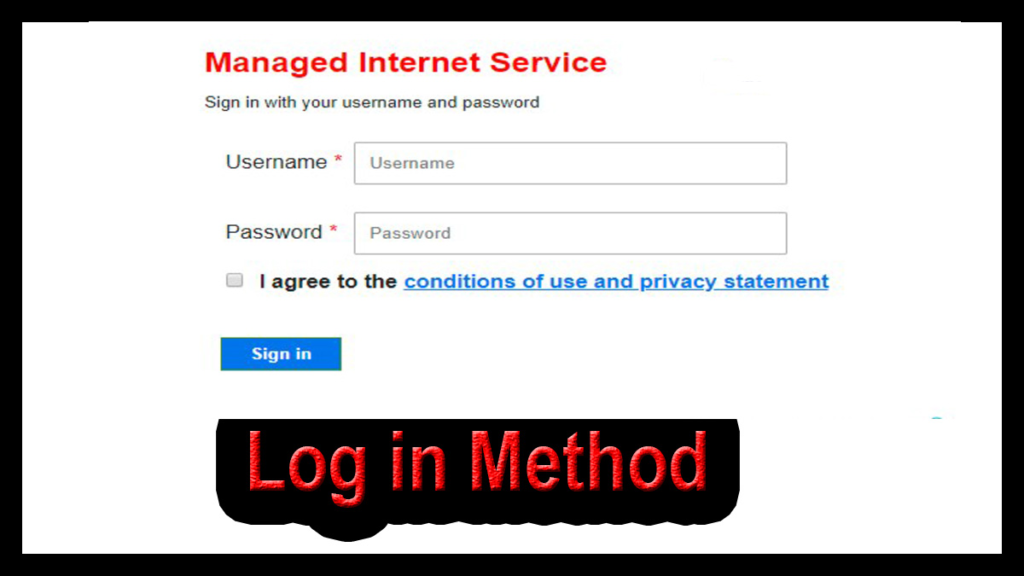
If routerlogin.net opens but does not ask for your NETGEAR username and password, the problem is usually with the router’s local management page, browser session, network connection, or HTTPS certificate—not necessarily your credentials.
Start by connecting your device directly to the NETGEAR router, opening routerlogin.net, and then trying the router’s IP address if the login window does not appear. NETGEAR’s current login instructions use admin as the username and the administrator password created during setup.
What Should Happen When You Open Routerlogin.net?
Normally, the process is straightforward:
- Connect your computer or phone to the NETGEAR router.
- Open a browser.
- Enter routerlogin.net.
- The router login window appears.
- Enter the administrator credentials.
- The router dashboard opens.
If the login window never appears, there is no point repeatedly entering or changing your password. First determine why the router’s login interface isn’t being displayed.
1. Make Sure You’re Connected to the Correct NETGEAR Router
Your device needs to be connected to the home network provided by the NETGEAR router you’re trying to manage.
Check that you’re not connected to:
● A different router
● A phone hotspot
● A neighbor’s WiFi
● An isolated guest network
● Another access point or mesh node
For the cleanest test, connect a computer directly to a LAN port on the NETGEAR router with an Ethernet cable.
Then open:
routerlogin.net
If the login screen appears over Ethernet but not through WiFi, the router is responding and the problem is more likely related to the wireless connection or local network configuration.
NETGEAR’s troubleshooting guidance recommends checking the device’s connection to the router when users cannot access the router’s web interface.
2. Try the Router’s IP Address
If routerlogin.net doesn’t display the login form, bypass the hostname and connect directly to the router.
Try:
192.168.1.1
If that doesn’t work, try:
192.168.0.1
You can also use the router’s actual IP address if your network has been customized.
This is an important diagnostic step. If 192.168.1.1 displays the login screen while routerlogin.net does not, the router itself is responding and the problem is more likely related to the hostname, browser, or local name resolution.
3. Type Routerlogin.net Into the Address Bar
Enter the address directly into your browser’s address bar.
Use:
routerlogin.net
Don’t search for “routerlogin.net login” in Google and select a result.
routerlogin.net is intended to provide access to the router’s local web interface. The goal is to communicate directly with your router, not find a public webpage about router login.
4. Try Another Browser
If the page opens but the username and password fields are missing, test another browser.
For example:
● Chrome → Edge
● Edge → Firefox
● Firefox → Chrome
● Safari → Chrome
If the login form appears in another browser, the NETGEAR router is probably responding correctly. The original browser may have cached an old page, retained problematic site data, or have an extension interfering with the interface.
NETGEAR recommends browser troubleshooting, including clearing browser cache, for routerlogin.net access problems.
5. Clear Your Browser Cache
A cached router page can produce unusual behavior, including:
● Blank pages
● Missing login fields
● Old router interfaces
● Redirect loops
● Pages that never finish loading
● Partially rendered dashboards
Clear the browser’s cached data and cookies, close the browser, reopen it, and try routerlogin.net again.
You can also test the address in a private or incognito window first. If the login form appears there, cached data or a browser extension becomes a strong suspect.
6. Check for an HTTPS Security Warning
One reason people think routerlogin.net isn’t asking for login details is that the browser may actually be showing a security warning before displaying the login page.
Newer NETGEAR and Orbi routers can use HTTPS for local router access. NETGEAR explains that its routers may use self-signed certificates, which can cause browsers to display a certificate warning even though you’re accessing the router locally.
You may see messages such as:
● “Your connection is not private”
● “Potential security risk ahead”
● “Certificate error”
● “Your connection isn’t secure”
If the warning is associated with your local NETGEAR router, follow the browser’s option to continue to the router’s management interface.
NETGEAR specifically documents this behavior and explains how the warning can lead to the normal login window.
7. Check Whether HTTPS Is Being Used
If your router has HTTPS enabled, you may need to access:
rather than relying on an older HTTP address.
NETGEAR explains that HTTPS encrypts information exchanged with the router’s web interface and that browsers may warn about the router’s certificate because it is self-signed.
So don’t automatically interpret a certificate warning as evidence that the router is broken.
The warning may simply be the browser’s way of telling you that it cannot validate the router’s self-signed certificate through a public certificate authority.
8. Don’t Confuse the Admin Password With the WiFi Password
Once the login form appears, make sure you’re entering the correct credentials.
Your NETGEAR router has different types of credentials.
The router administrator password is used to access router settings.
The WiFi password is used to connect devices to the wireless network.
Your MyNETGEAR account password is another separate credential.
NETGEAR explicitly states that the router administrator password is different from both the WiFi password and MyNETGEAR account password.
For current NETGEAR login instructions, the administrator username is admin, while the password is the one established during router setup. Both are case-sensitive.
9. What If the Login Page Is Completely Blank?
If routerlogin.net loads a blank page rather than a login window, work through these steps:
- Refresh the page.
- Open an incognito/private window.
- Try another browser.
- Clear browser cache and cookies.
- Temporarily test without browser extensions.
- Connect through Ethernet.
- Try 192.168.1.1.
- Try 192.168.0.1.
- Restart the router.
- Test from another device.
This sequence helps separate a browser problem from a router-access problem.
If another device displays the login form normally, focus on the original computer or phone rather than resetting the router.
10. Restart the NETGEAR Router
If the router is responding inconsistently, restart it.
A normal restart does not intentionally erase your customized configuration.
After the router has completely restarted:
- Reconnect your device.
- Open a browser.
- Enter routerlogin.net.
- Try the router’s IP address if necessary.
If the router is currently performing a firmware update, however, don’t interrupt it. NETGEAR’s firmware documentation warns against powering off or otherwise interrupting the router during an active update because doing so can corrupt the firmware.
11. Check the Actual Router IP Address
If neither routerlogin.net nor the common IP addresses works, check your device’s network information.
Look for the Default Gateway on your computer.
That address is often the local router address your device is using.
This matters if your network contains:
● A modem/router combination
● Multiple routers
● A mesh system
● A separate access point
● A manually configured LAN
The device providing your network gateway may not be using the address you expect.
12. Try the Nighthawk App
If your NETGEAR router supports the Nighthawk app, you can use it as an alternative management method.
NETGEAR’s router-login documentation supports both browser-based access and the Nighthawk app for compatible products.
This can help determine whether the problem is limited to the browser interface.
If the app can communicate with the router while your browser cannot display the login page, the router itself may be functioning normally.
13. Forgot the NETGEAR Admin Password?
If the login window appears but you don’t remember the administrator password, that’s a different problem from a missing login form.
NETGEAR’s current password-recovery process for supported Orbi and Nighthawk routers allows you to enter incorrect credentials three times to trigger the Router Password Reset screen. You then use the router’s serial number and previously configured security questions to create a new administrator password.
The process is:
- Open routerlogin.net.
- Enter incorrect credentials three times.
- Wait for the Router Password Reset screen.
- Enter the router’s serial number.
- Answer the security questions.
- Create a new administrator password.
- Log in again.
This is preferable to immediately performing a factory reset when password recovery is available.
14. Don’t Factory-Reset the Router Too Quickly
A factory reset should be one of the final troubleshooting steps.
A reset can delete personalized settings, including:
● Administrator credentials
● WiFi network name
● WiFi security settings
● Port forwarding
● Access-control settings
● Other customized router configuration
NETGEAR explicitly warns that a factory reset deletes personalized settings when administrator-password recovery cannot be completed.
So if the only problem is that the login page isn’t appearing, don’t erase the router yet.
First troubleshoot the browser, network connection, IP address, HTTPS warning, and router access.
Routerlogin.net Login Issue: Quick Troubleshooting Table
| Problem | Best first step |
| Routerlogin.net doesn’t open | Try 192.168.1.1 |
| 192.168.1.1 doesn’t work | Try 192.168.0.1 |
| Page is blank | Clear cache and try another browser |
| Security warning appears | Check the NETGEAR HTTPS/certificate warning |
| Login fields are missing | Try Ethernet and another device |
| Login fields appear but password fails | Check admin credentials |
| WiFi password doesn’t work | Use the router admin password instead |
| Admin password forgotten | Use NETGEAR password recovery if supported |
| Nothing works | Check gateway, restart router, then consider reset |
Frequently Asked Questions
Why is routerlogin.net not asking for my username and password?
The router’s login interface may not be loading correctly. Check your connection to the NETGEAR router, try 192.168.1.1, clear browser data, test another browser, and try Ethernet.
Why does routerlogin.net show a blank page?
A blank page can result from cached browser data, browser extensions, network problems, or difficulty reaching the router’s local interface. Testing another browser or device can quickly narrow down the cause.
Why does 192.168.1.1 work when routerlogin.net doesn’t?
If the IP address works but the hostname doesn’t, the router is responding. The issue is more likely related to hostname resolution, browser behavior, or cached local data.
What is the NETGEAR router username?
For current NETGEAR router login instructions, the administrator username is admin. The administrator password is normally the password established during setup.
Is my NETGEAR WiFi password the same as my admin password?
No. NETGEAR specifically distinguishes the router administrator password from the WiFi password.
Why am I seeing a security warning on routerlogin.net?
Some NETGEAR routers use self-signed certificates for HTTPS local management. Your browser may therefore display a certificate warning before showing the login screen. NETGEAR identifies this as expected behavior for affected routers.
Can I use the Nighthawk app instead?
Yes, on compatible NETGEAR routers. The Nighthawk app provides an alternative method for managing supported routers.
Should I reset my NETGEAR router?
Not as the first step. Try the browser, network, IP-address, HTTPS, and password-recovery options first. A factory reset can erase your personalized configuration.
Final Takeaway
When routerlogin.net is not asking for login details, focus first on whether the router’s management interface is actually loading.
Connect directly to the NETGEAR router, try routerlogin.net, then test 192.168.1.1 or the router’s actual gateway address. If the page is blank, switch browsers, clear cached data, and test another device.
If you see a certificate warning instead of the login screen, don’t automatically assume something is wrong. NETGEAR explains that newer routers can use HTTPS with self-signed certificates, which can trigger a browser warning before the normal login window appears.
Once the login form appears, use the router administrator credentials, not your WiFi password. NETGEAR’s current documentation identifies admin as the administrator username and distinguishes the router admin password from WiFi and MyNETGEAR credentials.
If you’ve forgotten the administrator password, use NETGEAR’s supported recovery process before considering a factory reset.
The safest troubleshooting order is:
Network connection → router IP → browser → cache → HTTPS warning → credentials → password recovery → factory reset.
That approach fixes the routerlogin.net login issue while minimizing the risk of unnecessarily wiping your NETGEAR router configuration.