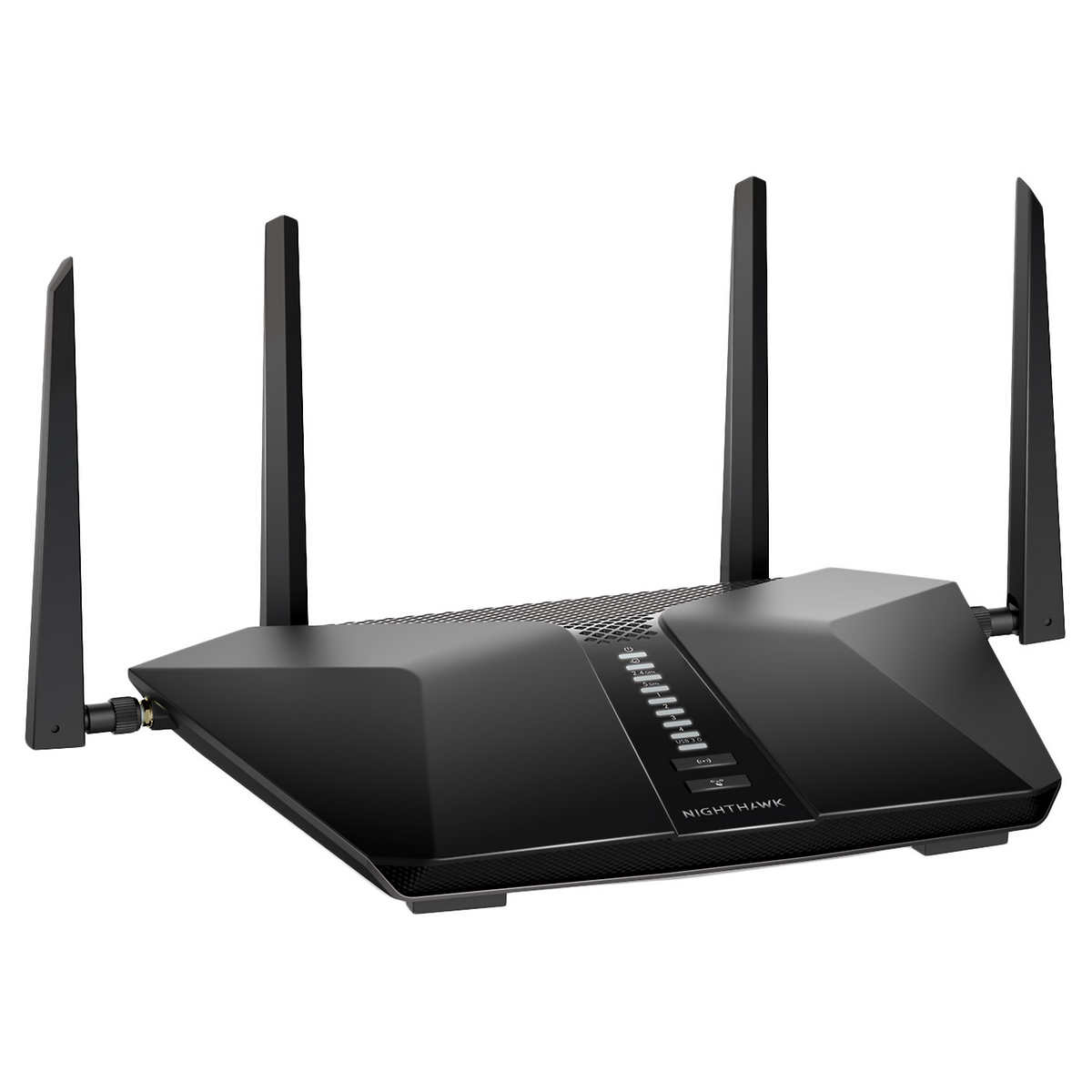
If routerlogin.net is not working, the problem usually isn’t that your NETGEAR router has stopped working. More often, your device isn’t communicating with the router correctly, the browser is interfering with the local login page, or you’re using the wrong router address.
The fastest fix is to connect your computer or phone directly to the NETGEAR router’s network, open a browser, and try routerlogin.net, followed by 192.168.1.1 or 192.168.0.1 if the hostname doesn’t load. NETGEAR officially recommends these addresses for accessing compatible routers.
This guide walks through the troubleshooting process from the simplest fixes to more advanced options, without jumping straight to a factory reset.
What Does “Routerlogin.net Not Working” Actually Mean?
routerlogin.net is used to reach the local administration interface of a NETGEAR router. It isn’t necessary for your router to have working internet service for the local login page to be accessible; what matters first is whether your device can communicate with the router.
NETGEAR says you should access the login page from a device connected to the router’s home network. You can use either a browser or, on supported products, the Nighthawk app.
There are several possible symptoms:
● routerlogin.net won’t load.
● The browser says the site can’t be reached.
● You get a connection or DNS error.
● The login page appears, but your credentials are rejected.
● 192.168.1.1 works while routerlogin.net doesn’t.
● The page loads incorrectly or repeatedly redirects.
● You can access the router but can’t get an internet connection afterward.
Those symptoms point to different problems, so the order in which you troubleshoot matters.
1. Make Sure You’re Connected to the NETGEAR Router
Start here before changing any settings.
Your computer or phone should be connected to the NETGEAR router’s Wi-Fi network. Alternatively, connect a computer to one of the router’s LAN ports with an Ethernet cable.
NETGEAR’s installation documentation specifically recommends connecting the setup device to the router’s Wi-Fi network or using an Ethernet connection before opening routerlogin.net.
If your device is connected to:
● A neighbor’s Wi-Fi
● A phone hotspot
● A different router
● A separate mesh system
● A guest network that isolates local devices
the routerlogin address may not reach the router you intend to configure.
A useful test
If you’re using Wi-Fi, temporarily try an Ethernet connection. NETGEAR recommends trying a wired connection when troubleshooting access problems. If routerlogin.net works over Ethernet but not Wi-Fi, you’ve narrowed the problem to the wireless connection or its configuration rather than the router’s web interface itself.
2. Try the Router’s IP Address Instead
If routerlogin.net not working is the specific problem, don’t keep retrying the same hostname.
Try these addresses directly:
● 192.168.1.1
● 192.168.0.1
NETGEAR states that its routers commonly use either 192.168.1.1 or 192.168.0.1 as the local router IP address.
For example, enter:
http://192.168.1.1
directly into your browser’s address bar.
If that doesn’t work, try:
http://192.168.0.1
This is one of the most useful diagnostic steps because it separates a routerlogin.net hostname problem from a broader inability to reach the router.
What the result tells you
| Result | Likely direction |
| routerlogin.net works | No problem |
| 192.168.1.1 works but routerlogin.net doesn’t | Hostname/browser issue |
| 192.168.0.1 works | Your router uses that local address |
| None work | Check network connection and router access |
| Login page appears but password fails | Credential problem |
Don’t assume that 192.168.1.1 is universal. NETGEAR documents both 192.168.1.1 and 192.168.0.1 as common default addresses.
3. Type the Address Correctly
Enter the address into the browser’s address bar, not a search engine.
Try:
NETGEAR’s documentation uses both HTTP and HTTPS depending on the router and configuration. On routers where HTTPS has been enabled, your browser may display a certificate warning when accessing the local interface. NETGEAR says that warning can be normal for its router interface.
If the browser searches for “routerlogin.net” instead of opening the router page, you probably entered it into a search field rather than the address bar.
4. Clear Your Browser Cache and Cookies
A corrupted or outdated browser session can prevent the router login page from loading correctly.
NETGEAR specifically recommends clearing browser cache when users encounter access errors with routerlogin.net or routerlogin.com. It also recommends trying another browser.
For example, if you’re normally using Chrome, test the address in Edge, Firefox, or Safari.
This is especially useful when:
● The page previously worked.
● The browser keeps redirecting.
● You see a strange cached error.
● The page partially loads.
● Another device can access the router normally.
You don’t necessarily need to change anything on the router itself.
5. Temporarily Disable Browser and Security Interference
NETGEAR’s troubleshooting guidance recommends temporarily disabling certain software that can interfere with access to the router’s local management page, including pop-up blockers, firewalls, and ad-blocking software.
If you’re using a VPN, security suite, proxy, or browser extension that changes network traffic, temporarily disabling it can also help identify whether it is responsible.
Only disable security software long enough to test the connection, then turn it back on.
If the login page suddenly works, you’ve identified an interference problem rather than a defective router.
6. Restart the NETGEAR Router
If the network connection looks correct but the administration page remains unavailable, restart the router.
A reboot is different from a factory reset.
Reboot:
Turns the router off and back on without intentionally erasing your customized settings.
Factory reset:
Restores factory settings and can require you to configure the router again.
NETGEAR notes that a normal reboot can resolve basic router problems while preserving Wi-Fi settings.
After restarting, wait for the router to finish booting and reconnect your device before trying routerlogin.net again.
7. Check the Router’s Actual IP Address
If neither 192.168.1.1 nor 192.168.0.1 works, your router may be using another local address.
NETGEAR explains that a device normally obtains its network information automatically from the router. The router’s IP address can also be viewed from the router interface when you can access it.
You can check your device’s network information to determine the default gateway. That gateway address is typically the local address you should use to reach the router.
This is particularly important if you have:
● A modem/router combination
● Multiple routers
● A mesh Wi-Fi system
● A third-party router connected to a NETGEAR device
● A manually configured network
The device providing your network gateway may not be the NETGEAR router you’re trying to access.
8. Check Your NETGEAR Login Credentials
If the login page loads but you can’t sign in, the problem is no longer routerlogin.net itself.
NETGEAR says the router administrator username is admin, while the password is generally the one established during setup. Credentials are case-sensitive.
Older NETGEAR routers may use password as the factory-default password, but you should not assume that applies to every current model. NETGEAR’s current guidance tells users to use the password specified during setup.
Also remember that your Wi-Fi password and router administrator password are not necessarily the same thing. NETGEAR explicitly distinguishes the Wi-Fi network password from the administrator password used for the router interface.
If you changed the admin password previously, use the customized password rather than automatically trying password.
9. Use the Nighthawk App If Your Router Supports It
Browser access isn’t the only way to manage a NETGEAR router.
NETGEAR supports management through the Nighthawk mobile app on compatible products. Your mobile device needs to be connected to the NETGEAR router’s Wi-Fi network.
This can be a useful workaround when:
● routerlogin.net isn’t loading.
● You prefer managing the router from your phone.
● You need to troubleshoot the router without using a computer.
NETGEAR’s current installation guidance also describes the Nighthawk app as a primary setup and management method for supported routers.
10. Update the Router Firmware—But Only After You Regain Access
Outdated firmware can be relevant when troubleshooting router behavior, but firmware updating shouldn’t be your first response to a simple login-page failure.
First regain access through routerlogin.net, the router’s IP address, or the Nighthawk app. Then check the firmware available for your specific model through NETGEAR’s official support resources.
This distinction matters because a routerlogin.net access problem and a firmware problem aren’t automatically the same issue. Updating firmware without first identifying the problem can add unnecessary complexity.
If you can access the router but are experiencing other problems—such as unstable Wi-Fi or configuration issues—firmware becomes a more relevant troubleshooting step.
11. If You Can Log In but Have No Internet, That’s a Different Problem
Suppose routerlogin.net finally works and you reach the router dashboard, but websites still won’t load.
That means the router’s local administration interface is functioning. The problem is now more likely related to the router’s WAN connection, modem, ISP, or internet configuration.
NETGEAR recommends checking the router’s status information and verifying whether the Internet port has received a WAN IP address from the ISP.
In other words:
Can’t open routerlogin.net → troubleshoot local router access.
Can open routerlogin.net but can’t browse the internet → troubleshoot the internet/WAN connection.
Keeping those two problems separate can save a lot of unnecessary configuration changes.
12. Don’t Factory-Reset the Router Too Soon
A factory reset is sometimes necessary, but it should be a last resort, not the first troubleshooting step.
A reset can remove customized settings, including configurations you may need to recreate afterward.
Before resetting, work through this sequence:
- Connect directly to the NETGEAR network.
- Try routerlogin.net.
- Try 192.168.1.1.
- Try 192.168.0.1.
- Test another browser.
- Clear browser cache and cookies.
- Temporarily check for firewall/ad-blocker interference.
- Try Ethernet.
- Restart the router.
- Try the Nighthawk app if supported.
- Verify the actual gateway/router IP.
- Only then consider a factory reset.
This order minimizes the chance of turning a simple browser or connectivity problem into a complete router reconfiguration.
Routerlogin.net Troubleshooting Checklist
Use this quick checklist when you need to fix Netgear router access:
● Device is connected to the NETGEAR router
● Tried routerlogin.net
● Tried 192.168.1.1
● Tried 192.168.0.1
● Entered the address in the browser address bar
● Tried another browser
● Cleared browser cache/cookies
● Temporarily checked firewall/ad-blocker interference
● Tried Ethernet
● Restarted the router
● Checked the device’s default gateway
● Verified the router administrator credentials
● Tried the Nighthawk app if supported
● Avoided factory reset unless necessary
Frequently Asked Questions
Why is routerlogin.net not working?
The most common troubleshooting possibilities are an incorrect network connection, browser cache or compatibility problems, security software interference, or using the wrong router IP address. NETGEAR recommends trying the router’s IP address, another browser, a wired connection, and browser-cache troubleshooting.
What IP address can I use instead of routerlogin.net?
Try 192.168.1.1 and 192.168.0.1. NETGEAR identifies both as common router IP addresses.
What is the default NETGEAR router username?
For supported NETGEAR routers, the administrator username is generally admin. The administrator password depends on the router and setup history.
Is the NETGEAR Wi-Fi password the same as the admin password?
No. NETGEAR specifically distinguishes the Wi-Fi password from the administrator password used to access the router’s web interface.
Should I reset my NETGEAR router if routerlogin.net doesn’t work?
Not immediately. Try the alternative IP addresses, another browser, a wired connection, cache clearing, and a router reboot first. A factory reset should generally be reserved for situations where other troubleshooting options have failed.
Can I manage my NETGEAR router without routerlogin.net?
On compatible models, yes. NETGEAR provides the Nighthawk app as an alternative way to access and manage supported routers.
Final Takeaway
When routerlogin.net is not working, don’t immediately assume your NETGEAR router needs to be reset or replaced.
Start with the network connection. Then try the router’s direct IP addresses—192.168.1.1 and 192.168.0.1—before moving on to browser troubleshooting. NETGEAR itself recommends these alternatives, along with trying another browser, clearing cached browser data, checking security software, and using a wired connection when necessary.
If the login page appears but rejects your password, focus on administrator credentials, not Wi-Fi settings. And if you can log in successfully but the internet doesn’t work, switch to troubleshooting the router’s WAN connection rather than continuing to troubleshoot routerlogin.net.
The key is to identify which layer is actually failing: the hostname, local network connection, router IP, browser, credentials, or internet connection. Once you isolate that layer, the solution is usually much simpler.
Source basis: The article follows the supplied content-generation requirements, including direct-answer-first structure, troubleshooting intent, evidence-aware writing, natural external sourcing, and avoidance of unsupported claims.