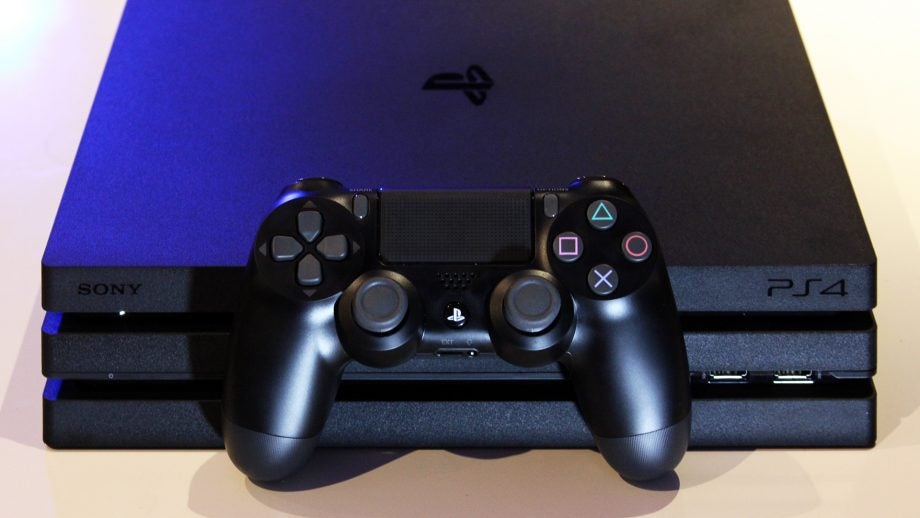
If you are looking for the best gaming monitors for PS4 Pro, the most important thing is not simply choosing the monitor with the highest refresh rate. A better approach is to match the display to what the console actually supports and to how you plan to use it.
Sony’s official PS4 Pro specifications confirm that the console supports 4K and HDR output, while selected games can use native 2160p or enhanced upscaling depending on how the game is designed. Sony’s official PS4 Pro 4K and HDR specifications.
That makes a 4K, 16:9 monitor with suitable HDMI connectivity a logical starting point for a PS4 Pro-focused setup. A high-refresh-rate monitor can still be useful if you also intend to connect a gaming PC, but its maximum refresh rate should not be the only factor driving the purchase.
The recommendations below are based on manufacturer specifications and Sony’s official documentation, not personal testing or claimed hands-on experience.
What Should You Look for in a PS4 Pro Monitor?
Before comparing individual models, it helps to understand which specifications actually matter.
4K Resolution
PS4 Pro was designed to support 4K gaming and entertainment. Sony explains that selected games can output native 2160p, while enhanced upscaling can increase lower-resolution game output to approach 4K.
This means a 4K monitor can make better use of the console’s capabilities than a standard 1080p display.
However, 4K on the monitor does not mean every PS4 Pro game is rendered internally at native 4K. The actual enhancement depends on the game.
That distinction is important when comparing gaming monitors for PS4 Pro because a monitor determines what the display can show; it does not determine how a particular game renders its image.
HDMI Connectivity
HDMI is particularly important because the PS4 Pro connects to the display through HDMI.
Sony’s official 4K and HDR setup guidance recommends checking that the display supports 4K/60Hz and that the console is connected to the correct 4K-capable HDMI input. Sony also recommends Premium HDMI cables throughout the connection chain.
Therefore, when comparing monitors, do not look only at DisplayPort specifications. Check the HDMI specifications separately.
HDR Support
PS4 Pro supports HDR video output, and Sony specifies an HDR10-compatible display as part of the HDR setup requirements. HDR also depends on whether the game or video content supports it.
This makes HDR a useful feature for a PS4 Pro monitor, but it should not be treated as a guarantee that every game will use HDR.
Refresh Rate
A monitor with 144Hz or 160Hz capability can be valuable, particularly for PC gaming. But the existence of a high refresh rate does not mean PS4 Pro will automatically use that monitor at its maximum refresh rate.
Sony explains that PS4 Pro supports enhanced frame-rate modes in selected games and that PS4 Pro enhancements vary by title.
For that reason, resolution, HDMI compatibility and overall display suitability should come before maximum refresh rate when buying specifically for PS4 Pro.
Three Gaming Monitors to Consider for PS4 Pro
The following models represent three different approaches rather than three identical competitors.
| Monitor | Native Resolution | Aspect Ratio | Maximum Refresh Rate | Best Fit |
| ASUS ROG Strix XG27UQ | 3840 × 2160 | 16:9 | 144Hz | 4K PS4 Pro + PC |
| LG 34GN850-B | 3440 × 1440 | 21:9 | 160Hz OC | Ultrawide PC + console |
| BenQ GW2283 | 1920 × 1080 | 16:9 | 60Hz | Basic PS4 Pro gaming |
ASUS ROG Strix XG27UQ: Best Fit for a 4K PS4 Pro Setup
The ASUS ROG Strix XG27UQ is the most direct match of these three if your main objective is a conventional 4K PS4 Pro gaming setup.
ASUS documents the monitor as a 27-inch 16:9 display with a maximum resolution of 3840 × 2160. Its connectivity includes two DisplayPort 1.4 inputs and two HDMI 2.0 inputs. ASUS also lists a 4ms gray-to-gray response time and a 1ms MPRT mode. ASUS ROG Strix XG27UQ 4K monitor specifications.
Those specifications matter because they combine a standard 16:9 aspect ratio with the 3840 × 2160 resolution that corresponds directly to the PS4 Pro’s 4K output capability.
The monitor’s 144Hz capability is more relevant to a gaming PC than to the PS4 Pro itself. That makes it potentially more useful for someone who wants one display for both platforms.
Best suited to: a PS4 Pro owner who wants a 4K monitor and may also connect a gaming PC.
Why it stands out: among these three models, its native 3840 × 2160 16:9 specification provides the most direct match for a 4K-focused PS4 Pro setup. This is a specification-based analysis, not a claim of independent performance testing.
LG 34GN850-B: Better for an Ultrawide PC Setup
The LG 34GN850-B takes a different approach.
LG lists the display as a 34-inch 3440 × 1440 Nano IPS monitor with a 21:9 aspect ratio. The company also specifies 144Hz operation with a 160Hz overclock, HDR10 and DisplayHDR 400. LG 34GN850-B UltraWide gaming monitor specifications.
The important point for PS4 Pro buyers is its native resolution and aspect ratio.
The monitor is not a 3840 × 2160 4K display. Its native resolution is 3440 × 1440, making it an ultrawide display designed around a different format.
That makes the LG a more logical choice for someone whose primary goal is ultrawide PC gaming, with the PS4 Pro serving as an additional device.
Best suited to: PC gamers who want an ultrawide monitor and occasionally use a PS4 Pro.
Important trade-off: it does not provide the straightforward 3840 × 2160 16:9 format of a conventional 4K PS4 Pro monitor.
BenQ GW2283: Basic 1080p Option
The BenQ GW2283 represents a much simpler approach.
BenQ’s official specifications list a 21.5-inch IPS panel, 1920 × 1080 maximum resolution, 60Hz refresh rate and 5ms GtG response time. It also has two HDMI 1.4 inputs and one VGA input.
This means it is not designed to showcase the PS4 Pro’s 4K capability.
Nevertheless, it can be a practical option if your priority is simply getting a functional display for PS4 Pro gaming and you are comfortable with 1080p.
The important distinction is that this is a basic compatibility choice rather than a 4K recommendation.
Best suited to: users who want a simple 1080p gaming display and do not consider 4K essential.
Trade-off: its 1920 × 1080 resolution does not take advantage of the PS4 Pro’s 4K output capability.
4K vs. 1080p for PS4 Pro
The choice between 4K and 1080p should be made before worrying about features such as 144Hz.
Sony’s documentation identifies several PS4 Pro output scenarios, including HD gaming and 4K gaming that can use enhanced upscaling or native 2160p output in selected games.
That gives you a simple decision:
Choose 4K if:
● You want to use the PS4 Pro’s 4K capability.
● You are buying a monitor specifically for PS4 Pro.
● You want a display that can also serve other 4K sources.
● Image resolution is more important to you than keeping the display inexpensive.
Choose 1080p if:
● You already have a 1080p display.
● Budget matters more than resolution.
● You do not intend to use the PS4 Pro’s 4K capability.
● You want a basic desk gaming setup.
The BenQ GW2283 illustrates the second category, while the ASUS XG27UQ illustrates the first.
Does PS4 Pro Need a 144Hz Monitor?
No.
A 144Hz monitor is not a requirement for PS4 Pro.
A 144Hz monitor can still be useful if you also connect a gaming PC. However, if the monitor is connected only to a PS4 Pro, its maximum PC-oriented refresh rate is much less important.
This is why a buyer should ask:
“Will the devices I connect to this monitor actually benefit from the additional refresh rate?”
That is a more useful question than simply choosing the monitor with the largest refresh-rate number.
Why 16:9 Is the Safer Format for PS4 Pro
If your primary purpose is PS4 Pro gaming, a conventional 16:9 monitor is the safer choice.
The ASUS XG27UQ uses a 16:9 3840 × 2160 format, while the LG 34GN850-B uses a 21:9 3440 × 1440 format.
Sony’s PS4 Pro documentation describes 4K output and native 2160p support for selected games rather than identifying 3440 × 1440 ultrawide gaming as a PS4 Pro target.
This does not mean an ultrawide monitor is unusable with a console. It means that if your main buying objective is PS4 Pro 4K, a 16:9 4K display has a more direct specification match.
That is an important distinction between compatibility and optimal format matching.
PS4 Pro Monitor Buying Framework
Instead of choosing a monitor based on a generic “best gaming monitor” ranking, use this four-step framework.
1. Decide Whether 4K Matters
If you want the PS4 Pro’s 4K capability, start by looking for a 3840 × 2160 display.
If you are comfortable with 1080p, you can consider less expensive and simpler monitors.
2. Check the HDMI Specification
Do not assume that a monitor’s DisplayPort capabilities automatically tell you what it can do through HDMI.
For example, ASUS lists two HDMI 2.0 inputs on the XG27UQ, while BenQ lists two HDMI 1.4 inputs on the GW2283.
For a PS4 Pro setup, the HDMI connection is therefore a specification worth checking before purchase.
3. Look at HDR Separately
HDR support can be useful for compatible games and content, but do not treat the word “HDR” as a complete description of image quality.
Sony’s HDR guidance specifically identifies HDR10-compatible displays and HDR-enabled content as part of the requirements.
Therefore, check the manufacturer’s detailed HDR specifications rather than relying solely on an HDR label.
4. Consider High Refresh Rate After the Basics
Once you have established that the monitor meets your resolution and connection requirements, consider refresh rate.
If you also use a PC, 144Hz or higher may make the monitor more versatile.
If you only use PS4 Pro, you may get more value from prioritising resolution, HDR implementation, ergonomics or other display characteristics.
How to Set Up PS4 Pro With a 4K Monitor
Buying the right monitor is only part of the process. The connection also needs to support the desired output.
Sony’s official setup instructions recommend connecting the PS4 Pro to the correct 4K-capable HDMI input and ensuring that the display supports 4K/60Hz. Sony also recommends Premium HDMI cables throughout the signal chain.
On the PS4 Pro, go to:
Settings → Sound and Screen → Video Output Settings
From there, you can check the available resolution options and allow the console to select the highest supported output automatically when appropriate.
Some games may also require 4K to be enabled through an in-game setting.
How to Enable HDR on PS4 Pro
HDR requires more than simply owning an HDR-labelled monitor.
Sony’s official HDR setup instructions explain that the display should support HDR10, the console should be connected with a Premium HDMI cable, and the game or streaming content must support HDR.
On the PS4, the relevant menu is:
Settings → Sound and Screen → Video Output Settings
From there, you can check the Video Output Information and use the HDR adjustment options when appropriate.
What If the PS4 Pro Does Not Show 4K?
If you connect a PS4 Pro to a 4K-capable monitor and do not get the expected output, work through the signal chain rather than immediately replacing the monitor.
Check the HDMI input
Confirm that the console is connected to the monitor’s appropriate HDMI input.
Check intermediate devices
If the PS4 Pro is connected through an AV receiver, switch or another HDMI device, check whether that equipment supports the required 4K signal.
Sony specifically recommends checking all devices between the PS4 Pro and the 4K display when troubleshooting 4K output.
Check the console’s Video Output Information
The PS4 provides information about the capabilities detected from the connected display. This can help identify whether the problem is related to the monitor, cable or connection settings.
Check HDR separately from 4K
A monitor can support 4K without giving you the HDR result you expected. Sony treats HDR as a separate requirement involving the display, HDMI connection and HDR-enabled content.
Gaming Monitor vs. TV for PS4 Pro
A gaming monitor is not automatically better than a TV.
The better option depends on how you play.
A monitor is particularly practical for a desk gaming setup because it can combine console and PC gaming in one workspace. A TV may be more appropriate if you sit farther away and want a larger screen for gaming and entertainment.
Sony itself presents PS4 Pro as a system designed for 4K-TV gaming and entertainment, so there is no requirement that PS4 Pro owners use a computer monitor.
The decision should therefore be based on:
● Viewing distance
● Screen size
● Desk or living-room setup
● 4K requirements
● HDR requirements
● Number of devices you plan to connect
Which of These Monitors Makes the Most Sense?
The answer changes depending on the buyer.
For a PS4 Pro-first 4K setup
The ASUS ROG Strix XG27UQ is the strongest specification match among these three examples because it combines 3840 × 2160 resolution, a 16:9 aspect ratio and HDMI 2.0 connectivity.
For PC gaming with occasional PS4 Pro use
The LG 34GN850-B is more interesting because its 34-inch 21:9 ultrawide format and high refresh rate are aimed at a different kind of gaming setup.
For basic 1080p gaming
The BenQ GW2283 is the straightforward option. Its documented 1920 × 1080 resolution, 60Hz refresh rate and HDMI connectivity make it a simple display rather than a 4K-focused PS4 Pro monitor.
A Simple PS4 Pro Monitor Decision Table
| Your Priority | What to Look For |
| PS4 Pro 4K gaming | 3840 × 2160, 16:9, suitable HDMI |
| PS4 Pro + gaming PC | 4K + higher refresh rate |
| Ultrawide PC gaming | 21:9 display such as 3440 × 1440 |
| Basic console gaming | 1920 × 1080, 60Hz |
| HDR gaming | HDR10-compatible display + compatible content |
| Desk setup | Monitor |
| Long-distance gaming | Consider a 4K TV |
This framework is more useful than simply ranking monitors because it connects the specification to the actual use case.
Frequently Asked Questions
Is 4K worth it for PS4 Pro?
If you want to use the console’s 4K capability, a 4K display makes sense. Sony confirms that PS4 Pro supports 4K output and that selected games can output native 2160p, while other games can use enhanced upscaling.
Can PS4 Pro work with a 1080p monitor?
Yes. A 1080p display will work with PS4 Pro, although it will not provide the 4K viewing experience the console supports.
Does PS4 Pro need a 144Hz monitor?
No. A 144Hz monitor can be useful if you also connect a PC, but the monitor’s maximum refresh rate should not be the primary reason for buying it for PS4 Pro.
Is the LG 34GN850-B a 4K monitor?
No. LG lists its native resolution as 3440 × 1440 and its aspect ratio as 21:9. It is an ultrawide monitor rather than a conventional 3840 × 2160 4K display.
Is the BenQ GW2283 suitable for PS4 Pro?
It can be used as a basic 1080p display. BenQ lists a 1920 × 1080 resolution, 60Hz refresh rate and two HDMI 1.4 inputs.
Does every PS4 Pro game render in native 4K?
No. Sony explains that PS4 Pro uses different enhancement approaches. Selected games can output native 2160p, while other games use enhanced upscaling to approach 4K.
Does PS4 Pro support HDR?
Yes. Sony states that PS4 consoles support HDR video output, while HDR use also depends on an HDR-compatible display and HDR-enabled content.
Final Verdict: Choosing the Right PS4 Pro Monitor
The best gaming monitor for PS4 Pro is not necessarily the one with the highest refresh rate, largest screen or longest specification sheet.
If your priority is 4K PS4 Pro gaming, a 3840 × 2160 16:9 display with appropriate HDMI support is the most straightforward direction. Among the three monitors examined here, the ASUS ROG Strix XG27UQ has the closest specification match.
If you are primarily a PC gamer and want an ultrawide monitor that can also accommodate a console, the LG 34GN850-B serves a different purpose with its 3440 × 1440 21:9 panel and high-refresh-rate PC features.
If you simply need a basic 1080p display, the BenQ GW2283 offers a straightforward 1920 × 1080, 60Hz configuration with HDMI connectivity.
The most reliable buying strategy is therefore simple:
Start with the PS4 Pro’s actual output capabilities, identify your primary use case, check HDMI compatibility, then consider additional features such as HDR and high refresh rates.
That approach gives you a monitor that fits your gaming setup instead of paying for specifications you may never use.