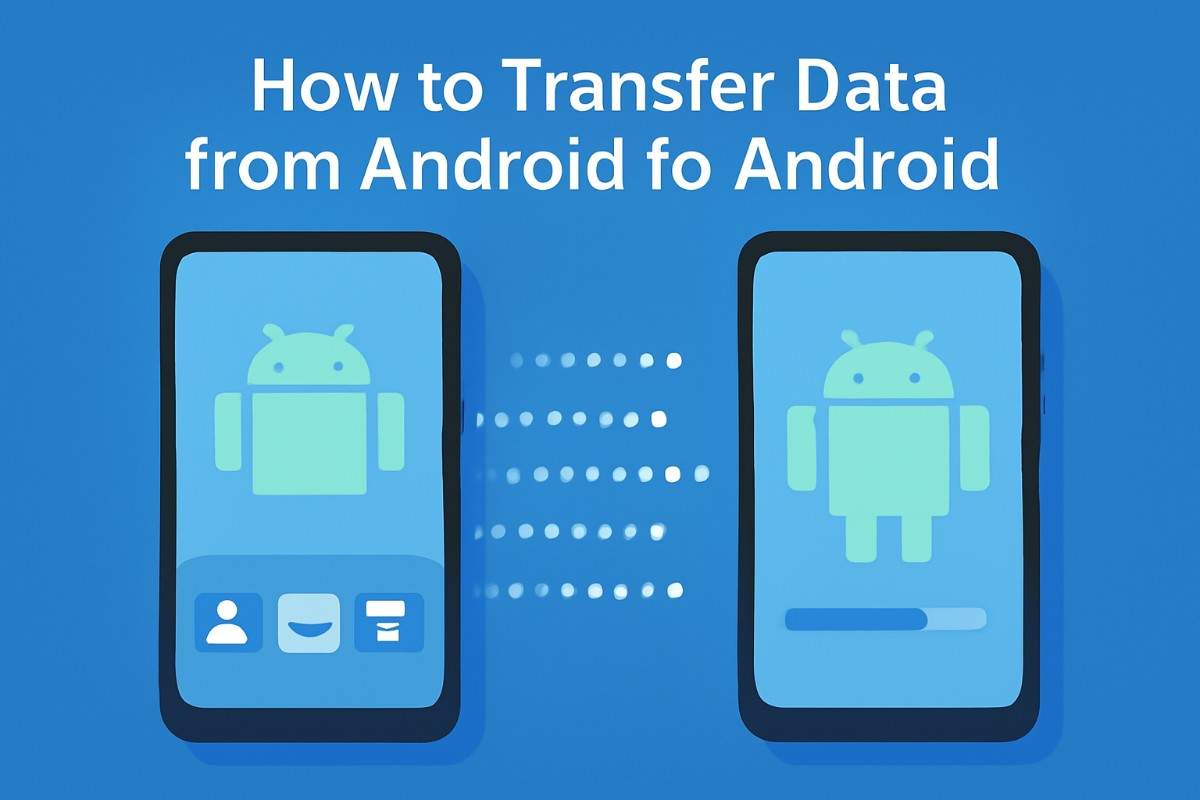
Moving to a new Android phone does not mean you have to start from scratch. You can transfer contacts, photos, videos, messages, apps, settings, and other important information from your old Android device to your new one using Android’s built-in transfer process.
For most people, the easiest method is to connect the two phones during the new device setup and follow the on-screen instructions. Android supports both wireless and wired transfer methods, while cloud backup provides another option if your old phone is unavailable. The official Android data transfer guide. explains the current setup process and the types of data that can be copied.
The exact options can vary depending on the phone manufacturer, Android version, and the type of data you want to move. This guide explains the practical ways to transfer data Android to Android and what you should check before erasing your old phone.
What Data Can You Transfer from Android to Android?
The amount of data you can transfer depends on your devices and the transfer method. During Android setup, you can generally select the information you want to copy rather than transferring everything blindly.
Commonly transferable data can include:
Apps
Contacts
Photos
Videos
Text messages
Call history
Device settings
Calendar information
Music and other media
Wallpaper
Some account information
Not every application stores its data in a way that allows it to be copied directly. Some apps require you to sign in again or use their own backup and restore system.
WhatsApp is a good example. If you want to preserve WhatsApp conversations, make sure the chats are backed up or transferred using WhatsApp’s supported process before you reset or erase the old phone.
Before You Transfer Data, Prepare Both Phones
A little preparation can prevent problems during data migration.
First, charge both phones. A transfer can take considerable time when you have many photos, videos, apps, and other files. Keeping both devices charged reduces the chance of the process stopping midway.
Next, make sure your old phone is unlocked and working properly. You may need to approve the connection or enter your screen lock PIN during setup.
It is also a good idea to connect to a stable Wi-Fi network and install any pending system updates before beginning.
If you are using a Pixel device, Google’s official Pixel setup guidance. recommends having the previous device available, keeping both phones charged, using a strong Wi-Fi connection, and having a compatible USB-C cable available if necessary.
Finally, make a backup of important information before starting. A transfer is designed to make the process easier, but having a backup gives you another recovery option if something does not copy correctly.
Method 1: Transfer Data During Android Setup
For most users, this is the best method.
Turn on your new Android phone and begin the normal setup process. Depending on the device, you should see an option to copy apps and data from another phone.
Keep your old Android phone nearby and unlocked. The new phone may ask you to connect the devices using a cable, scan a QR code, or establish a wireless connection.
Once the phones are connected, review the data categories available for transfer. Select the information you want to move and start the process.
The transfer time depends on how much information you are moving. A phone containing several hundred gigabytes of photos and videos will naturally take longer than one containing only contacts and messages.
Do not switch off either phone or disconnect the cable while the transfer is running unless the device specifically tells you that the process is complete.
Method 2: Transfer Data Wirelessly
Wireless transfer is convenient because you do not always need a cable.
Start the setup process on your new Android phone and select the option to copy data from your old device. Keep both phones close together and follow the instructions displayed on the screen.
Depending on the Android version and device manufacturer, the phones may use a temporary wireless connection, QR code, pairing code, or another connection method.
Wireless transfer is particularly useful when you do not have the correct USB cable available.
However, the speed depends on the devices and wireless connection. If the transfer is taking too long or the connection repeatedly fails, a wired connection can be more reliable.
Method 3: Transfer Data with a USB Cable
A cable can be the better option when you have a large amount of data to move.
Connect the old and new Android phones using a compatible USB cable or appropriate adapter. Once the new phone detects the old device, follow the setup instructions and choose the data you want to copy.
A wired transfer can be useful for large photo and video libraries because the phones communicate directly rather than relying entirely on a wireless connection.
Make sure the cable supports data transfer. Some inexpensive or damaged cables may provide charging without properly supporting data communication.
If the new phone reports a cable problem, try disconnecting and reconnecting both ends or using another compatible cable.
Can You Transfer Data After Setting Up the New Phone?
Sometimes, yes.
Modern Android devices can provide options for transferring or restoring information even after the initial setup, although the exact process depends on the device and Android version.
If you skipped the transfer during setup, check your phone’s Settings for a device setup, backup, or data-transfer option. Some manufacturers also provide their own migration tools.
If the direct transfer option is no longer available, you may need to restore information from a cloud backup or use a manufacturer-specific tool.
Google’s Android troubleshooting documentation also explains that transfer options and recovery steps can vary between devices, especially when a transfer fails or was skipped during initial setup.
How to Transfer Contacts from Android to Android
Contacts are usually one of the easiest types of information to move.
If your contacts are synchronized with your Google Account, sign into the same account on your new Android phone. Your synchronized contacts should then become available on the new device.
If some contacts are stored only on the old phone or SIM card, check the Contacts app for an export or import option. You can save contacts as a file and import them onto the new device if necessary.
Before wiping your old phone, open the Contacts app on the new phone and confirm that important contacts are present.
How to Transfer Photos and Videos
Photos and videos can consume most of the storage involved in a phone migration.
You can transfer them directly during Android setup, copy them using a cable, or use a cloud photo backup service.
If you already use Google Photos and your photos are backed up, signing into the same Google Account on the new phone can give you access to the backed-up library without manually copying every image.
For large offline collections, a direct cable transfer can be faster and can help you retain locally stored files.
Before deleting anything from the old phone, open your photo library on the new device and confirm that important photos and videos are available.
What About Apps and App Data?
Your new Android phone can reinstall compatible apps associated with your account, but app data is more complicated.
Some apps restore their information automatically through their own cloud systems. Others require you to sign in again or manually restore a backup.
Banking apps, authentication apps, messaging apps, games, and other security-sensitive applications may have their own migration procedures.
For this reason, do not assume that seeing an app installed on your new phone means all of its data has also been transferred.
Open the important apps individually and confirm that your accounts, saved information, and settings are available before resetting the old phone.
What If Android-to-Android Transfer Is Not Working?
Transfer problems can happen for several reasons.
If the process stops, first check that both phones have enough battery and that the connection has not been interrupted. If you are using a cable, reconnect it or try another compatible cable.
If wireless transfer is slow or fails repeatedly, try a wired connection if your phones support it.
You should also check available storage on the new device. If the new phone does not have enough free space, you may need to transfer fewer files or back up large photos and videos separately.
For setup failures, Google’s Android transfer troubleshooting guidance covers issues such as interrupted transfers, cable problems, QR-code pairing problems, Wi-Fi failures, and insufficient storage.
Android to Android Transfer vs. Manual File Copy
The built-in Android transfer process is generally the most convenient option when moving to a new phone because it can handle several types of information during setup.
Manual copying is still useful when you only need specific files.
For example, if you only want to move a folder containing documents, videos, or downloaded files, you can connect the phone to a computer or use cloud storage instead of migrating the entire device.
The best method depends on what you are trying to move:
Situation Recommended Method
New phone setup Android’s built-in transfer
Large photo library Cable or direct transfer
Contacts Google Account sync
Backed-up photos Google Photos
Old phone unavailable Cloud backup
Only a few files Manual file transfer
Samsung Galaxy to Galaxy Samsung Smart Switch
Should You Erase Your Old Android Phone?
Do not reset your old phone immediately after the transfer.
First, check your new phone carefully. Confirm your contacts, photos, videos, messages, important apps, documents, and other essential information.
Open important accounts and applications and make sure you can sign in successfully. If you use an authenticator application, banking application, password manager, or other security-sensitive service, verify access before wiping the old device.
Once you are confident that your important data is available on the new phone and you have a backup where appropriate, you can factory reset the old device before selling, trading in, or giving it away.
Final Verdict
The easiest way to transfer data Android to Android is to use the built-in transfer process during the setup of your new phone. Wireless transfer is convenient, while a USB cable can be preferable for larger migrations or when the wireless connection is unreliable.
Before starting, charge both devices, keep the old phone accessible, make an important-data backup, and ensure the new phone has enough storage. After the transfer, verify your important information before resetting the old device.
For most users, Android’s built-in migration tools provide everything needed to move from an old Android phone to a new one without manually copying every file.
Frequently Asked Questions
Can I transfer everything from one Android phone to another?
You can transfer many common types of data, including apps, contacts, photos, videos, messages, call history, and some settings. However, certain app data and protected information may require separate backup or sign-in procedures.
Is it better to transfer Android data wirelessly or with a cable?
Both methods can work. Wireless transfer is convenient, while a cable can be preferable for large amounts of data or when wireless transfer is unreliable.
Can I transfer data if I no longer have my old Android phone?
If your old device is unavailable, you may be able to restore information from an existing Google backup or another cloud backup, depending on what was previously backed up.
Will WhatsApp chats transfer to my new Android phone?
WhatsApp data generally requires its supported backup or transfer process. Check your WhatsApp backup settings before resetting the old phone.
Can I transfer data after setting up my new Android phone?
Some Android devices allow data transfer after initial setup, while the exact options depend on the device and Android version. If the direct transfer option is unavailable, a cloud backup or manual transfer may be necessary.