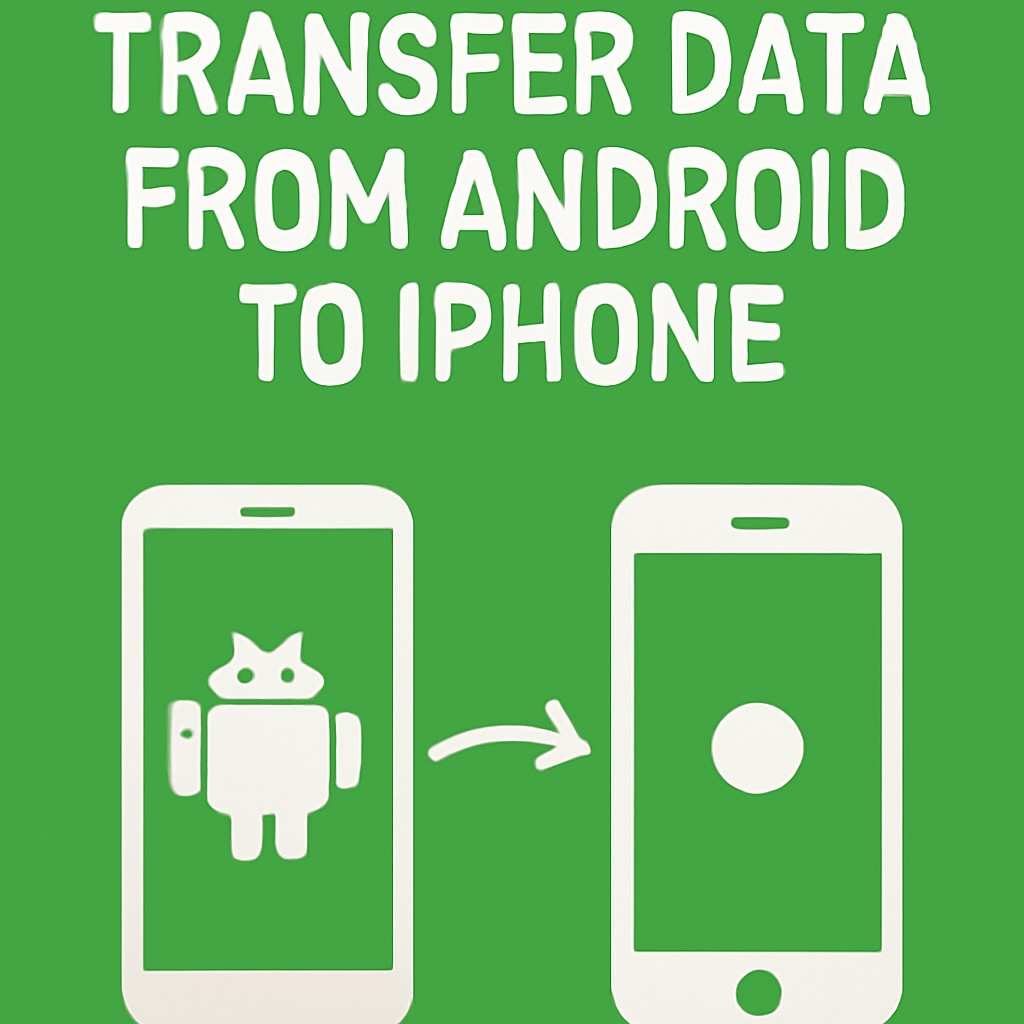
Moving from an Android phone to an iPhone does not mean leaving your important data behind. Contacts, photos, videos, messages, calendars, files, and other information can be moved during the iPhone setup process.
For most people, the easiest option is Apple’s Move to iOS process. It is designed specifically for switching from Android to iPhone and can transfer many common types of data directly during setup. Apple’s current guidance also supports a direct USB-C connection between compatible Android phones and iPhones, which can be useful when moving a large amount of data.Apple’s Move to iOS transfer guidance.
The exact transfer experience depends on the Android phone, iPhone model, operating-system versions, available storage, and the type of information you want to move. This guide explains how to transfer data from Android to iPhone, what moves automatically, what requires extra steps, and what you should check before erasing your old Android phone.
What Data Can You Transfer from Android to iPhone?
The amount of data you can transfer depends on the devices and the method you use.
Using Apple’s supported Android-to-iPhone migration process, you can transfer many common types of information, including:
Contacts
SMS messages
Message history
Call history
Photos
Videos
Photo albums
Files and folders
Calendars
Mail accounts
Web bookmarks
Accessibility settings
Display settings
WhatsApp messages and media
Voice Memos
Some free apps
Apple notes that music, books, and PDFs may need to be moved manually after the main transfer. Apps that are available on both Google Play and the App Store may be matched during the process, after which you can download the corresponding iPhone versions.
Not every Android application can transfer its internal data directly. Banking apps, authentication apps, games, password managers, and other security-sensitive applications may require you to sign in again or use their own migration process.
Before You Transfer Data, Prepare Both Phones
A few minutes of preparation can prevent problems during the migration.
First, charge both phones or keep them connected to power. A transfer can take a while, especially if your Android phone contains a large photo or video library.
Next, make sure you can unlock your Android phone. You may need to enter your PIN, password, or pattern during the process.
Connect both devices to Wi-Fi and make sure the iPhone has enough available storage for the information you want to transfer.
It is also worth making a backup of important information before you begin. This gives you another recovery option if something does not transfer correctly.
If you are using Apple’s Move to iOS method, keep both devices close to each other and avoid using the Android phone for other tasks while the transfer is running.
Method 1: Transfer Data with Move to iOS
For most Android users switching to an iPhone, this is the simplest approach.
Start the setup process on your new iPhone. When you reach the Transfer Your Apps & Data screen, select From Android.
On your Android phone, install and open the Move to iOS app. Follow the instructions shown on both devices.
Your iPhone will display a temporary code. Enter that code on the Android phone when prompted.
The iPhone then creates a temporary Wi-Fi connection that allows the two devices to communicate. Select the content you want to transfer and start the migration.
Keep both phones nearby and connected to power while the transfer runs. Even if the Android phone says the process has finished, wait until the progress bar on the iPhone has completed.
Apple’s current Move to iOS transfer instructions explain the complete setup process, including the temporary Wi-Fi connection, transfer code, supported content, and troubleshooting steps.
Method 2: Transfer Data Using a USB-C Cable
If your Android phone and iPhone support a compatible USB-C connection, a cable can be a useful alternative to wireless transfer.
Connect the two devices using an appropriate data cable and follow the instructions displayed during iPhone setup.
A wired connection can be particularly useful when you have a large amount of data to move. It also avoids depending entirely on the wireless connection between the phones.
Make sure the cable supports data communication. Some cables are designed primarily for charging and may not work correctly for transferring files.
If the transfer does not begin, disconnect the cable and reconnect it. If necessary, try another compatible data cable or adapter.
Can You Transfer Data After Setting Up the iPhone?
This is one of the most important things to understand before starting.
If you want to use the full Move to iOS setup process, Apple says the iPhone needs to be at the appropriate setup stage. If you have already completed setup, you may need to erase the iPhone and start the setup process again.
If you do not want to erase the iPhone, you can move your content manually instead.
That makes it important to decide how you want to migrate your data before completing the initial iPhone setup.
For users who have already finished setting up the iPhone, Apple’s manual migration guidance covers ways to move contacts, photos, music, documents, and other content separately.
How to Transfer Contacts from Android to iPhone
Contacts are usually straightforward to move.
If your contacts are synchronized with your Google Account, you can add that Google Account to the iPhone and continue using your contacts through the supported account services.
You can also transfer contacts during the Move to iOS process.
Before deleting anything from the Android phone, open the Contacts app on the iPhone and check that important names and phone numbers are present.
Pay particular attention to contacts stored only locally on the Android phone or on a SIM card. These may require an additional import or synchronization step.
How to Transfer Photos and Videos
Photos and videos can represent the largest portion of a phone migration.
Move to iOS can transfer camera photos, videos, and photo albums as part of the Android-to-iPhone setup process.
For large offline collections, a direct connection can be useful. If your photos are already backed up to Google Photos, you can also sign into the same Google Account on the iPhone and access your backed-up library.
If you prefer Apple’s Photos app, you may want to download or import your backed-up images after completing the initial migration.
Before deleting anything from your Android phone, open the photo library on the iPhone and confirm that your important pictures and videos are available.
What About WhatsApp Chats?
WhatsApp deserves special attention because messaging data can be more complicated than ordinary files.
WhatsApp conversations and media can be included in Apple’s supported Android-to-iPhone transfer process. However, you should make sure you follow the supported WhatsApp migration steps and use the same phone number where required.
Do not erase the Android phone until you have opened WhatsApp on the iPhone and confirmed that your important conversations and media are available.
If WhatsApp does not restore correctly, check the current WhatsApp transfer requirements before attempting another migration.
What About Apps and App Data?
Your Android apps do not simply become identical iPhone apps.
When an equivalent app exists in Apple’s App Store, the migration process may identify compatible free apps so you can download their iPhone versions.
However, the internal data stored by an Android application may not transfer.
For example, banking apps, authentication apps, games, and other applications may require a fresh login or a separate backup and restore process.
Open important applications individually after the migration and confirm that your accounts and saved information are available.
Do not assume that an app appearing on your iPhone means all of its Android data has been transferred.
How to Transfer Music, Books, and PDFs
Not every type of content moves automatically.
Apple specifically notes that music, books, and PDFs may need to be moved manually after the main Android-to-iPhone transfer.
If these files are important, identify where they are stored on your Android phone before starting.
You may need to move them using a computer, cloud storage, or another supported method depending on their format and where they originally came from.
This is one reason you should make a checklist of important files before wiping your Android phone.
How to Transfer Files and Documents
Documents,downloaded files, and folders can be transferred through the supported migration process in many cases.
For files that do not transfer automatically, manual migration may be necessary.
Cloud storage can be convenient if you already keep your documents online. Alternatively, you can use a computer to copy files from the Android phone and then move them to the appropriate location on the iPhone.
Check your Downloads folder, document folders, and any application-specific storage before deciding that the migration is complete.
What If Android-to-iPhone Transfer Is Not Working?
Transfer problems can occur for several reasons.
Start by checking that both devices have enough battery and remain close together. Make sure Wi-Fi is enabled and that you have not accidentally switched to another app on the Android phone during the transfer.
If you are using a cable, disconnect and reconnect it. You can also try another compatible cable.
Check the available storage on the iPhone. If the Android content is larger than the available iPhone storage, the migration may not complete successfully.
If the transfer repeatedly fails, restart both phones and try again.
Apple’s troubleshooting guidance recommends keeping the Move to iOS app open on the Android phone, restarting the devices when necessary, checking Wi-Fi-related settings, and disabling cellular data during troubleshooting.
Android to iPhone Transfer vs. Manual Migration
The best method depends on how much information you need to move.
Situation Recommended Method
New iPhone setup Move to iOS
Large photo library Move to iOS or USB-C connection
Contacts Move to iOS or Google Account
WhatsApp chats Supported WhatsApp migration
Backed-up photos Google Photos
Music and PDFs Manual transfer
Only a few files Manual file transfer
iPhone already configured Manual migration or reset and use Move to iOS
For a complete migration, using Move to iOS during initial setup is generally the cleanest option because it handles multiple categories of information together.
Should You Erase Your Old Android Phone?
Do not reset the Android phone immediately after transferring your data.
First, check the iPhone carefully.
Confirm your:
Contacts
Photos
Videos
Messages
WhatsApp chats
Important apps
Documents
Calendars
Accounts
Other essential information
Open your most important applications and make sure you can sign in successfully.
If you use an authenticator app, banking app, password manager, or other security-sensitive service, verify access before wiping the old phone.
Once you are confident that your important data is available on the iPhone and you have a backup where appropriate, you can erase the Android phone before selling, trading it in, or giving it away.Apple’s guidance on preparing a device for trade-in.
Final Verdict
The easiest way to transfer data from Android to iPhone is to use Apple’s Move to iOS process during the initial iPhone setup. It can move many important categories, including contacts, messages, photos, videos, calendars, files, and supported WhatsApp data.
A USB-C connection can be useful when compatible devices support it, while manual migration remains an option for content that does not transfer automatically.
Before starting, charge both phones, connect them to Wi-Fi, check the iPhone’s available storage, and back up important information. Most importantly, verify your data on the new iPhone before erasing the old Android device.
If you are switching platforms for the first time, planning the migration before completing iPhone setup can save you from having to reset the new device later.
Frequently Asked Questions
Can I transfer everything from Android to iPhone?
You can transfer many common types of data, including contacts, messages, photos, videos, calendars, files, call history, and supported WhatsApp data. However, some app data, music, books, and PDFs may require separate steps.
Is Move to iOS better than manually transferring data?
For a complete Android-to-iPhone migration, Move to iOS is generally more convenient because it can transfer multiple types of information during setup. Manual transfer is useful when you only need selected files or have already completed iPhone setup.
Can I transfer data from Android to iPhone with a cable?
Yes. Compatible Android phones and iPhones can use a USB-C cable for a direct transfer. The exact compatibility depends on the devices and cables involved.
Can I transfer WhatsApp chats from Android to iPhone?
Supported WhatsApp messages and media can be transferred during the Android-to-iPhone migration process. Make sure you follow the supported process and verify your chats on the new iPhone before erasing the Android phone.
Can I transfer data after setting up my iPhone?
If you have already completed the iPhone setup, you may need to erase the iPhone to use the full Move to iOS process. Otherwise, you can manually transfer supported content.
What happens to my Android apps?
Compatible free apps may be matched with versions available in the App Store. You may need to download them, sign in again, and restore application-specific data separately.